One Glance Tells You What to Do First: Dashboard Design for Vibe-Coded Projects
A dashboard rarely suffers from too little data; it suffers from data never arranged into a sentence that tells someone what to do. This guide gives vibe-coded projects a dashboard method: three questions, three metric layers, an overview-breakdown-action layout, and the four places dashboards most often break.
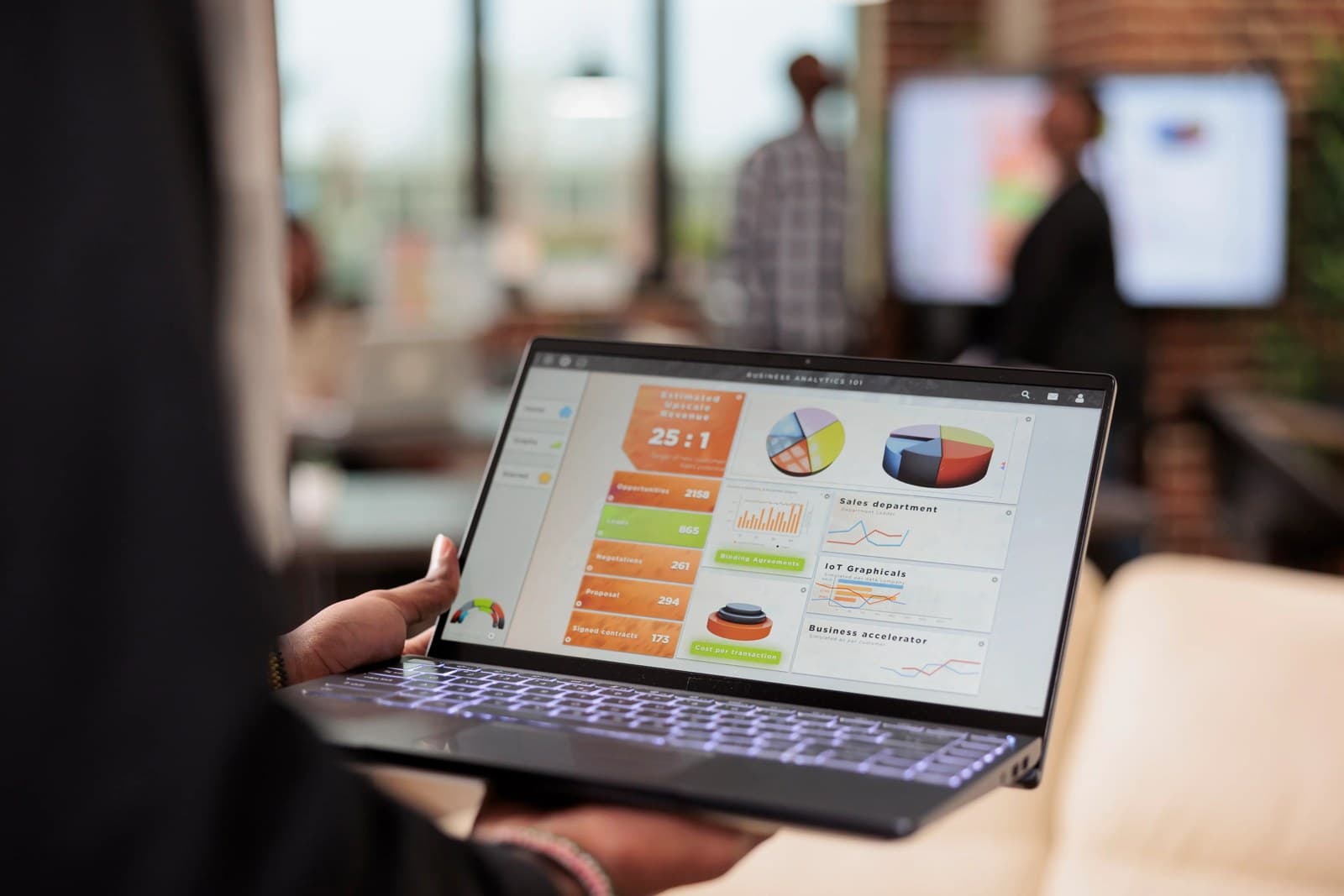

Open the admin panel of a vibe-coded project and the first thing you usually see is a row of numbers: today's visits, registered users, total revenue, pending orders. Plenty of numbers, yet the owner still closes the tab not knowing what to do first. A dashboard's problem is rarely a lack of data. It is data that has never been arranged into a sentence that tells someone what to do. This guide is about building a dashboard where one glance tells you what to do next.
First, a note on the examples: the "Mountain Wind Guesthouse" and its owner "A-Li" in this article are fictional, invented only to make the reasoning concrete. They are not a real product or a real person. The method itself is general and can be applied to any vibe-coded project.
One view: a dashboard answers three questions, not every question
A good dashboard answers only three questions: how are things right now, where is something wrong, and what should I do first? Any number that answers none of those three does not belong on the first screen, however pretty it looks. The first mistake of many AI-generated dashboards is to lay out every field the database can count: a row of cards for the users table, another for orders, another for logs, until the whole thing becomes a wall of data. The more numbers on the wall, the less anyone knows where to start.
Every morning, A-Li opens her guesthouse panel wanting to know just three things: are there rooms left to sell today, did anything go wrong with yesterday's check-ins, and how far is this month from the full-occupancy goal? So her first screen has only four cards: rooms available today, yesterday's occupancy rate, revenue so far this month, and exceptions needing attention, such as guest complaints, unfinished cleaning, or failed payments. Below the cards sits an action list: handle the exceptions first, then check progress toward the goal. Everything else, channel mix, room-type preference, year-over-year history, lives on a second screen for whoever wants to dig deeper.
There is a simple test for whether a card belongs on the first screen: if this number changed, would you immediately do something different today? Rooms available dropping from three to zero makes A-Li shut off promotions and chase the cleaners at once. Occupancy falling ten points sends her to check whether a bad review appeared. If a number moves and you would not change your mind, it is decoration. Move it to the second screen.
Three layers of metrics: north star, guardrails, vanity
Pick the wrong metrics and a beautiful dashboard will mislead you more efficiently than an ugly one. Sort metrics into three layers. The first layer is the north star metric, and there is only one: it stands for the real value the product creates. For the guesthouse it is not registered users but "completed room-nights", because the guesthouse only earns money when a guest actually stays. The second layer is guardrails, the numbers that protect the floor: complaint rate, payment failure rate, cleaning overtime rate. They look boring on a normal day and must raise an alarm the moment they cross a line. The third layer is vanity metrics: page views, visits, favorites. They feel good when they rise, but rising does not mean the business improved. They belong on the second screen, or only in the weekly report.
Layering has a practical benefit for vibe coding: AI-generated code loves to make vanity metrics big and bright, because they are the easiest to compute and the easiest to draw as line charts. If your prompt states the north star metric first, names the guardrails, and says vanity metrics stay off the first screen, the generated dashboard skeleton will not drift. If you never define the layers, the model will treat every field as equally important and hand you a wall nobody can read.
Every metric also needs one sentence in plain language. Do not just write "conversion rate 12.4%". Write "conversion rate 12.4%: of every 100 people who viewed a room, 12 booked, down 1.8 points from last week." Numerator, denominator, and comparison baseline: miss one and the number cannot be trusted. AI-generated statistics code is especially prone to mixing up "registered users" with "activated users", or "orders placed" with "payments succeeded". Before launch, write a definition table for every metric: what the numerator is, what the denominator is, what the time window is, and how outliers are handled. That table is your evidence the next time anyone argues about a number.
Layout in reading order: overview, breakdown, action list
Arrange the first screen in three bands: overview, breakdown, action list. At the top, three or four overview cards holding only the north star and guardrail metrics, each with a comparison: against yesterday, against the same period last week, or against target, at least one of the three. An absolute number without comparison means nothing. "Revenue today: 4,800 yuan" tells nobody whether that is good or bad. "Revenue today: 4,800 yuan, up 12% on last week, 31% short of this month's target" immediately supports a judgment.
The middle band is the breakdown: cut the overview number along one dimension. The guesthouse cuts by room type, by channel, or by weekday, but only one cut at a time, never three at once. A-Li sees revenue 31% short of target, opens the breakdown, and finds it at once: double rooms are full, twin rooms are empty. The problem becomes "how do we sell twin rooms", not the vague "revenue is weak". A good breakdown dimension is one that maps directly onto an action: which room type to discount, which channel to renegotiate. A dimension that only produces "noted" is a bad dimension.
The bottom band is an action list, not another chart. Every item needs a verb and an object: "ask cleaning to redo room 302", "resend payment links for the 3 failed orders", "reply to the 2 pending guest messages". A dashboard's finish line is not "the user understands the situation" but "the user finishes the next thing". If your dashboard leaves users still unsure what to do first, it is a poster, not a tool.
Empty, missing, and delayed data: three cases, three treatments
Dashboards fail most often when the data has not arrived yet. On a new product's first day, the north star metric is zero and the line chart hugs the floor, and a new user concludes that nobody uses this product. Empty data should not be drawn as zero. Write a sentence instead: "No stays recorded yet. Once the first stay completes, room-nights will appear here." And give a direction: where to go to create the first data point. An empty state is not a blank chart; it is guidance.
Missing data is different from empty data. Empty means there truly is nothing. Missing means there should be something but it did not arrive: a channel's order feed broke for two hours, or last night's statistics job never ran. The worst treatment for missing data is to quietly show zero. A-Li sees zero orders from a channel, assumes the channel has no traffic, when in fact the feed is broken, and every conclusion after that is wrong. The right treatment is a small marker on the card: "Channel A data current to 18:00 yesterday; today's data delayed", and a break in the line chart over the missing period, not a straight line drawn across it. The gap itself is a warning: do not trust this stretch.
Delayed data needs its refresh rhythm stated plainly. Real-time, hourly, and daily are three different promises. Writing "real-time" commits you to minute-level freshness; if a user places an order, refreshes, and sees no change, trust is gone at once. Most vibe projects do not need real-time at all: a guesthouse checked twice a day is plenty, an online store checked hourly is plenty. Print the refresh time in the corner of the card, "updated hourly, last update 09:00", which reassures users far more than any "real-time big screen" slogan.
Time ranges and comparisons: good defaults, enough customization
The time-range picker is where AI-generated dashboards most often get overcomplicated: today, this week, this month, this quarter, custom, year-over-year, month-over-month, a whole row of buttons, and nobody knows what they are comparing. Offer only three defaults: today, this week, this month. The default view is "today", because most small teams only care about today on a daily basis. A custom range can exist, but behind one entry point, not on equal footing with the common options.
Comparison baselines need the same restraint. When year-over-year and month-over-month appear together, the chart carries four lines and nobody can read it. The rule: daily reports compare against yesterday, weekly reports against last week, monthly reports against last month. State the baseline in the chart title, never leave users guessing: "Revenue this month (vs. same period last month)". There is also a classic trap: misaligned comparison periods. On October 29, "this month" has only 29 days, and comparing it with a full 30-day September guarantees a shortfall. The correct comparison is against September's first 29 days, period aligned to period. AI-generated code often misses this detail, so test month and week boundaries explicitly before launch.
Permissions and visibility: not everyone should see the same board
Sooner or later every dashboard hits permissions: does the cleaner need to see revenue? Does a part-time support agent need every guest's phone number? Usually not. The rule can be simple: visibility by role. The owner sees everything, cleaners see only their own rooms' tasks and status, support sees messages and order status but not revenue or cost. Before writing code, write a role-to-data table: each row states what this role can see, what it cannot see, and why.
There is a trap specific to vibe-coded projects: to save effort, AI-generated backends often return the same statistics payload to every logged-in user and let the frontend hide cards by role. Hidden is not the same as unauthorized; anyone who opens the network requests can read all the numbers. The backend must filter data by role, and the frontend only displays what it received. When testing, do not just click through the interface: log in as two different roles, then inspect the API responses and confirm sensitive numbers were never sent.
There is also a second kind of visibility, for the user themselves: let users choose what their dashboard shows. Three to five optional cards, drag to reorder, hide what you do not care about. The cost is low, but it greatly increases the chance the dashboard stays open long-term. People keep looking at boards they arranged themselves; someone else's beautiful wall gets boring after three days.
Choosing charts: decide what to compare, then pick the chart
The most common waste on dashboards is drawing everything as a line chart, or every share as a pie chart. Before choosing a chart, ask what the user should compare. For trends over time, use a line chart: one line tells how a metric moved. For comparing sizes, use a bar chart: a few bars rank at a glance. For composition, use a stacked bar or plain percentages; a pie chart only earns its place when there are at most four categories and someone genuinely cares who holds what share. With more categories, a pie becomes a plate of indistinguishable colored fragments, worse than a table sorted by size.
Tables are underrated on dashboards, yet they are the best value "chart" available. A-Li's channel breakdown ended up as a table: one row per channel, columns for orders, revenue, share, and change from last week. A table holds four numbers at once, supports sorting, and lets you click into detail; a line chart cannot. The rule: when users need exact numbers, sorting, or row-by-row action, use a table; when they only need to spot a trend or an anomaly, use a chart. A good dashboard puts the chart on top and the table below: the chart finds the anomaly, the table assigns it to a person.
Two details belong in the acceptance checklist. First, do not start the vertical axis at a large number, which flattens variation into a straight line; and do not truncate the axis so aggressively that a 3% change looks like a collapse. Zero-based axes are the default, and any truncation must be marked on the chart. Second, keep colors to three meanings: normal, watch, problem. Green, yellow, and red each own one state; the fewer decorative colors, the better. When colors multiply, users must learn the legend before reading the data, and the dashboard gets slower by exactly that step. The goal of data visualization is not beauty but speed: fast enough that one glance decides the next move.
Launch checklist: tick every item before shipping
Here is a checklist you can use directly. First, is the metric definition table complete, with numerator, denominator, window, and outlier handling for every metric? Second, can the first screen answer the three questions within ten seconds: how are things, where is the problem, what do I do first? Third, have empty, missing, and delayed data each been tested, with missing stretches breaking the line rather than drawing as zero? Fourth, are time comparisons aligned to the same period, with month and week boundaries tested? Fifth, logging in as two different roles, are sensitive numbers actually filtered at the API layer? Sixth, open it on a phone once: do cards collapse into one unreadable column, is the line chart too small to read, can the action list buttons actually be tapped?
A dashboard is not finished when it ships; it starts then. In the first month, check weekly: is there a first-screen card nobody ever clicks, is there an action-list task type nobody ever completes? Demote unclicked cards to the second screen, rewrite uncompleted tasks differently. Dashboards, like every other product feature, get closer to fitting with each revision rather than being right in version one. A-Li's guesthouse dashboard is now on its fourth version: the first was a data wall, the second cut it to four cards, the third added the action list, the fourth added the cleaner view. None of these was a rebuild from scratch; each one made the sentence "one glance tells you what to do" a little more true. Your dashboard can do the same, one version at a time.
Comments (0)
Related articles

A settings page is a product's memory. This guide gives vibe-coded projects a three-layer preference model, a storage combination strategy, and a launch checklist, so changes survive device switches and version upgrades.

Confirmation design is graded friction, not a pile of dialogs. This guide grades destructive actions into four levels, matches each with a confirmation pattern, and gives copy rules for object, consequence, scope, and exit.

Many update prompts only say "a new version is available", users tap "later", and later never comes. This guide turns update prompts into a negotiation that makes sense: three grades, four copy elements, timing and frequency rules, staged rollout and rollback, and three promises for forced updates.