Scan to Sign In: QR Code Login for Your Vibe Project
Password sign-in is painful and phishable; QR login saves minutes and removes the target. Using a fictional running club throughout: seven build steps, four must-haves on the confirmation page, a 12-item checklist, and five common mistakes.
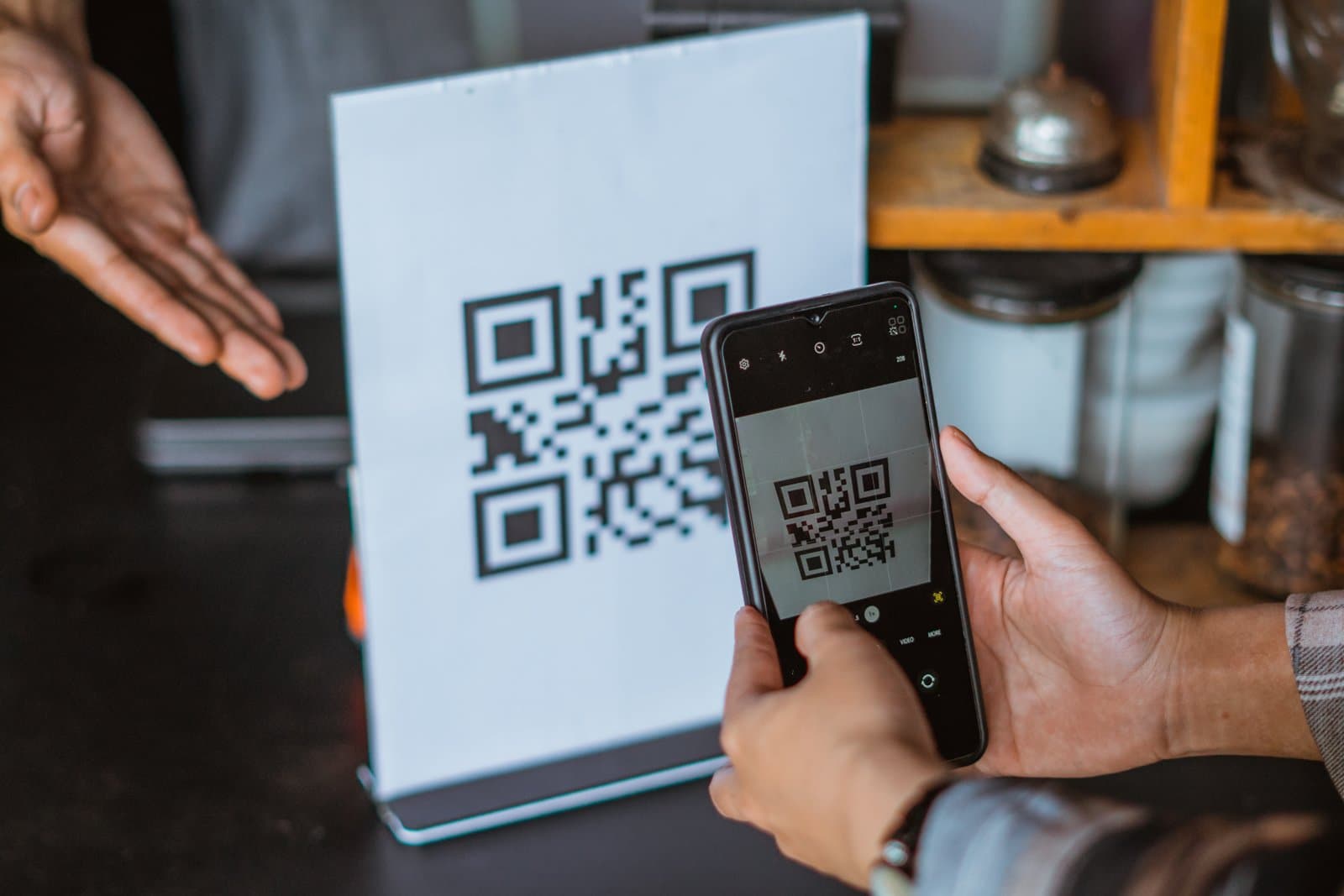
First, be precise: which kind of QR login is this about?
The phrase "QR code login" means different things in different products. One kind is the WeChat and QQ pattern: your phone app is already signed in, you open a web page on your computer, scan a QR code, and the page signs in — no password typed. Another kind is the reverse: a code is shown on a computer screen, the phone scans it, and the phone completes the sign-in — common in offline check-in and self-service kiosks. A third kind is "scan to register": scanning creates a new account with a phone number or third-party login, skipping the registration page entirely.
This guide covers only the first kind: the user is already signed in on your phone app (or mini-program), and when they want to sign in on a desktop web page, they scan a code and walk in without typing a username and password. It is the most common form, the most worth doing first, and the one with the most pitfalls. The other two kinds get a brief note on trade-offs at the end, but no deep dive.
The whole guide uses one fictional example throughout: a running club mini-program called "City Night Runners," with a phone app and a mini-program, whose organizers need a desktop web admin panel to schedule events and export sign-up sheets. The product, numbers, and dialogues in the example are all fictional — they exist to make the reasoning concrete, not to report real operating data. As you read, swap "Night Runners" for your own product; the logic is the same.
When is QR login worth building? Do three sums first
The first sum is "how painful is sign-in?" If your users mostly live on their phones and only occasionally open the desktop admin panel, QR login saves "open the phone, find the password manager, copy, paste, go back to the computer and click sign in" — about three minutes. For an organizer who signs in once a week, three minutes is nothing; for an operator who signs in ten times a day, it saves half an hour a day. In the Night Runners example, the club leader schedules events twice a week and has to type a 14-character complex password each time; mistype it twice and the account locks for five minutes. That is exactly the scenario where QR login earns its keep.
The second sum is "how dangerous are passwords?" You know the problems with password sign-in: users reuse one password across ten sites, one breach compromises them all; phishing pages look identical to the real thing, and users only realize after typing their password. QR login removes the act of typing a password from the desktop entirely — even if an attacker clones your login page pixel for pixel, there is no password to steal, because there is no password to type. QR login has its own phishing variant, of course, and the security checklist later in this guide covers it.
The third sum is "do your users have a signed-in phone app?" QR login only works if users already have an active session on their phone. If your product is web-only, with no app or mini-program, QR login has no source to draw from — build the app first. If the phone and web accounts are not even the same system (for example, the mini-program uses WeChat login while the website uses email registration), unify the accounts before talking about QR codes.
In one sentence: users sign in to the desktop often, password sign-in is both painful and risky, and the phone app already has a session — if two of the three are true, build it; if all three are true, build it now.
Seven steps: from generating the QR code to a successful sign-in
Step one: the desktop requests a login QR code. The backend generates a one-time login credential (a token), binds it to the QR code, and gives it a two-minute lifetime. The QR code must not contain a plaintext account name or any user information — only an identifier for the token. The token itself must be properly random: at least 32 bytes from a cryptographically secure random generator, not an auto-increment ID or a timestamp dressed up to look random.
Step two: the desktop polls for sign-in status. After the front end gets the QR code, it asks the backend every two seconds, "has this code been scanned?" Don't poll too fast — once a second will hammer the backend when traffic grows — and don't poll too slowly; longer than three seconds and users start wondering if it is broken. Teams with WebSocket can use a long-lived connection instead of polling, but polling is simpler and easier to debug; start with polling and switch when volume demands it.
Step three: the user scans the code with their phone. Before signing in, the phone app first asks the backend whether the token is still valid and unused. For an expired or already-used code, the phone should say directly, "This QR code has expired, please refresh it on your computer" — don't let users keep scanning a dead code.
Step four: the phone shows a confirmation page. This is the most important screen in the whole flow and deserves its own section below: it must show which device, location, and time the sign-in is for, with "Confirm sign-in" and "Cancel" buttons underneath. Before tapping confirm, the user must be able to see which device they are authorizing.
Step five: the phone sends the confirmation to the backend. When the backend receives it, it marks the token as "confirmed" and binds it to the user currently signed in on the phone. Mind the order: verify the token's state first, then bind the user, and only then notify the desktop. Any failure must return a specific error code — don't make the front end guess.
Step six: the desktop receives the session. When polling finds the token confirmed, the backend issues a proper login session (a session cookie or JWT) to the desktop, with a lifetime set by your existing session policy — don't hand out a never-expiring session just because it is QR login. The front end takes the session and jumps to the home page. The whole flow, from scan to home page, should take under five seconds.
Step seven: write a sign-in log. Time, device, IP, location, and sign-in method (QR code) all go in. The next time users open their account security page and see "Nov 13, 22:40, Chrome, Shanghai, QR code sign-in," they can tell whether someone else has touched their account. This log is not for your operations team — it is for the user.
The confirmation page: the security of QR login lives on this one screen
The most dangerous attack on QR login is "phishing by QR code": an attacker opens your login page on their own computer, sends the QR code to a victim, and tricks the victim into scanning and confirming — and the victim ends up signing the attacker's computer in. Half the defense is technical; the other half is product design, and the product design lives entirely on the confirmation page.
The confirmation page must carry four things. First, device information: what device is requesting the sign-in (for example, "Windows computer, Chrome browser"), its IP address, and its approximate location (city-level is enough — don't go down to street level). Second, the time the request was made, to the minute. Third, a prominent warning: "You are authorizing a new device to sign in to your account. If this wasn't you, tap Cancel." Fourth, two buttons — Confirm and Cancel — and don't make Confirm much bigger than Cancel, and don't use color to nudge users toward Confirm.
In the Night Runners example, the club leader opens the admin panel on an internet-café computer and scans; the phone shows "Windows computer, Chrome, IP in Shanghai, request made Nov 13, 2026, 22:40." One look tells the leader this is the request they just made, so they tap Confirm. If instead it read "Mac computer, IP overseas, made at 3 a.m.," the leader would tap Cancel immediately. That one screen is the last line of defense.
There are three hard rules on top of that. First, a token can be used exactly once; it is voided the moment the confirmation succeeds, and reuse is rejected outright. Second, the token lives for two minutes — don't stretch it to ten minutes "for user experience," because phishers love long-lived codes. Third, the confirmation page must open inside the official app, never via an H5 jump to the browser: a confirmation page inside the app cannot be faked by an attacker; one in a browser can be cloned by swapping the domain.
The funnel: where exactly does QR login lose people?

This funnel shows the fictional Night Runners example's first month after launch: of 1,000 scans initiated, 968 reached the phone confirmation page (96.8%), 923 users tapped confirm (95.4%), 901 actually completed sign-in and reached the home page (97.6%), and 612 were returning users who scanned again within seven days (67.9%). Read the chart for two points: first, the overall conversion from scan to home page is 90.1% — once QR login works, very few people drop out; second, the biggest single-step loss is not in the confirmation step but in "scanned again within seven days" — which means QR login itself is fine, and the question is whether users want to scan again next time. That depends on how often the desktop is used, not on the scanning experience.
The experience details: the QR code itself takes some care
A QR code is not something you can just draw and forget. First, size: the code shown on a desktop should be at least 200 pixels on a side — smaller than that and the phone camera can't focus on it; if it is projected or shown on a large offline screen, scale it up with the viewing distance. Second, error correction: use level M (15%) or Q (25%), not level L (7%) — with a logo covering a small patch in the middle, a low-correction code won't scan. Third, an expiry countdown: show "expires in 1:47" next to the code so users can see it is time to refresh; after expiry, replace it with a fresh code automatically instead of making users click refresh themselves.
Fourth, feedback after scanning has to be fast. Within one second of scanning, the phone should show the confirmation page; past two seconds, users start suspecting the scan failed and scan again — and the second scan creates a duplicate request the backend must recognize and reject. Fifth, error messages should speak like a human: "This QR code has expired, please refresh and try again" is a hundred times more useful than "Error 410," and "The network is unstable, please check and try again" beats "Request failed." Sixth, don't forget accessibility: next to the QR code, put a "Can't scan? Sign in with your account and password" link — users with a broken camera, or admins signing in on someone else's behalf, need that fallback.
The pre-launch checklist: 12 items, none optional
One, the token is a cryptographically secure random value, at least 32 bytes. Two, the token lives for two minutes and is void after expiry. Three, the token is single-use and dies the moment it is confirmed. Four, the QR code contains no user information and no plaintext account. Five, the confirmation page shows device, IP, city, and request time. Six, the confirmation page opens only inside the official app, never via an H5 redirect. Seven, polling runs every two seconds and stops automatically on timeout with a refresh prompt. Eight, users reach the home page within five seconds of a successful sign-in. Nine, a sign-in from a new city triggers extra verification. Ten, every QR sign-in is logged, and users can see it on their account security page. Eleven, five failed scans in a row lock that device for ten minutes. Twelve, the old password sign-in stays available — don't block that road.
The way to verify is equally concrete: take five real users and walk the full flow in three network conditions (Wi-Fi, 4G, weak signal), timing every step; then have one person play the attacker and try to slip through with an expired code, a used code, or someone else's code. Ship only when all 12 items pass; fix first if any one fails. Sign-in is the door to the account, and the lock on that door is worth an extra day.
After the scan: new-device alerts and session management
Building QR login finishes only half the job. The other half is what happens after sign-in: how do users know which devices their account is signed in on? What do they do when they spot a strange device? What if the phone is lost — how do they kick every session at once? Skip these, and the convenience QR login saves will be paid back with interest the first time an account is stolen.
Start with new-device alerts. When a user signs in on a never-before-seen device via QR code, immediately push a message to the phone: "Your account just signed in on a Windows computer (Shanghai). If this wasn't you, change your password and sign that device out now." The value is in the time gap: the attacker has just succeeded, and the user finds out right away. The alert should carry two buttons: "That was me" and "Not me — sign it out." Tapping the second revokes that device's session on the spot and forces a password change.
Next, build a session management page. In account settings, list "signed-in devices," each row showing the device, location, last active time, and sign-in method (QR code, password, SMS), with a "Sign out" button beside it. A user who signs in at an internet café and forgets to sign out can kill that session from their phone at home. The list is also the most useful evidence when support handles a "my account was stolen" ticket: which device, when, from where — all at a glance.
Finally, handle "what if the phone is lost." The phone app needs a "Sign out of all devices" button; one tap revokes every session, including the one on the lost phone itself. Nobody uses this feature on a normal day, and the one time it is used it saves the account. When building it, give users clear feedback — "Signed out of all 3 devices" — instead of leaving them guessing whether it worked.
Common mistakes: almost every team makes at least one of these five
The first mistake is a long-lived QR code. Some teams set the code to expire in 30 minutes, or never, "for user experience" — and then phishers print the code, stick it on a wall, and anyone who scans it hands over their account. Remember: a QR code is not a poster; it is a letter that burns after reading. The shorter its life, the safer it is, and two minutes is the balance point.
The second mistake is a confirmation page that shows no device information. Some teams' confirmation pages carry one giant "Confirm sign-in" button, and users have no idea which device they are authorizing. Phishers love that kind of page: the victim scans, taps confirm, and never realizes they just signed in someone else's computer. Device, IP, city, and time — all four are mandatory.
The third mistake is polling without a limit. The front end asks the backend every two seconds, forever, even after the user has closed the page. The correct behavior: stop polling after two minutes, show "This QR code has expired, please refresh," and have the backend void the token at the same time.
The fourth mistake is giving QR login and password login two different session policies. Some teams issue 30-day sessions for QR login but only 7-day sessions for passwords — so once an attacker gets in, they can roam freely for 30 days. Session lifetime should be set by the account's security level, not by how the user signed in.
The fifth mistake is building QR login and leaving no password fallback. Phone lost, app deleted, camera broken — and the user can never sign in again. QR login is "a more convenient road," not "the only road." Password and SMS sign-in are old methods, but they should stay available as backups.
Drawing the line: QR login is not QR payment, and not QR registration
One final boundary. The site previously published a guide on the QR code ecosystem (vibe-project-qr-code-ecosystem-guide), covering the full playbook for QR codes in sharing, payment, and check-in scenarios; this guide covers only the sign-in scenario, in depth rather than breadth. QR payment cares about "did the money arrive"; QR login cares about "did we identify the right person." The security models are completely different and cannot be swapped.
The other two forms deserve a one-line note each: scanning on a phone to sign in to another phone app (for example, scanning inside one mini-program to sign in to another) is the same authorization with a different carrier, and the flow can be reused; scan-to-register (scanning creates an account on the spot) adds the conflict of "is this phone number already registered," and teams building QR login for the first time should not ship both at once. Get "phone scans the desktop" solid first, then expand to other forms.
Comments (0)
Related articles

localStorage only stores strings and has no indexes. IndexedDB is a real database in the browser: structured data, far larger capacity, indexes, and transactions. Following MDN's Using IndexedDB, IDBDatabase, and IDBObjectStore: the five-step routine, opening, upgrades, keys, indexes, transactions, add versus put, get, cursors, ranges, and multi-tab upgrades.

You already call functions every day; this guide names what you have been doing. Following MDN's Functions, Arrow function expressions, and Rest parameters: declarations versus expressions, parameters and arguments, default values, rest parameters, spread syntax, return values, arrow function shorthand, the this trap, callbacks, and scope.

One page should stand up on a phone, a tablet, and a computer. This guide follows MDN's Responsive web design, Using media queries, and the viewport meta reference: fluid HTML, the viewport tag, fluid grids and max-width, images that never burst their container, media query syntax, breakpoints set by content, mobile first, responsive type, testing capability instead of width, and a pre-launch checklist.