A Second Lock Beyond the Password: Two-Factor Authentication for Vibe Projects
Leaked passwords are routine, and a password alone cannot guard an account that can delete data, spend money, or see other people's data. This guide covers TOTP enrolment, verification, and recovery: verify before enabling, one-time backup codes, a 5-attempt lockout, and revocable trusted devices.
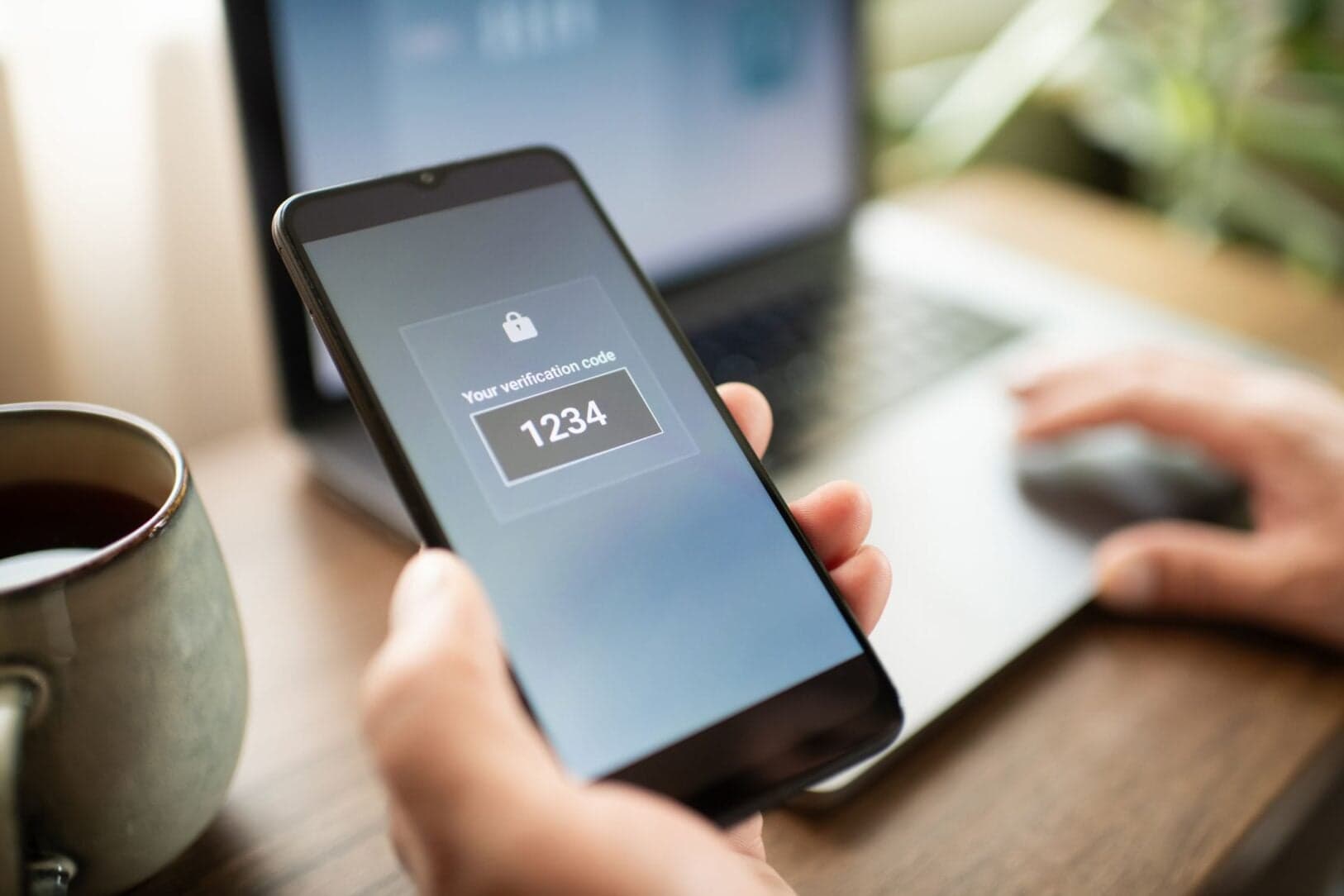

One thing first, stated plainly: the example in this article is entirely fictional — "Shiguang Shouzhang" and its maker Jiang Xiao are invented, used only to make the process concrete. They do not refer to any real product or real data. With that out of the way, on to the real subject.
A password stopped being a secret a long time ago. Credential stuffing, phishing, old database leaks — any one of them can turn a decent-looking password into scrap paper. When you build a project on your own, there is no security team and no fraud department, and once a user account is stolen, deleting data, changing passwords, and posting under someone else's name can all happen while you sleep. Two-factor authentication (2FA) is the cheapest insurance available in that situation: a second lock on top of the password.
First, a boundary, so this does not get mixed up with things covered elsewhere. This article is about adding a second factor on top of an existing password. It is not about replacing the password with a link or a code, not about phone-bound or device-biometric schemes that use no shared secret, and not about how long a session lives or how many devices are logged in. This article covers three things only: how to enrol, how to verify, and how to recover when the second factor is lost.
My position is blunt: if any account in your project can delete data, spend money, or see other people's data, it deserves 2FA. The other way round, if it is a throwaway demo with no real data in it, where losing it costs nothing, then skipping 2FA is fine. Security measures cost something: you write code, you write a recovery flow, you answer support emails. Spend that cost on accounts that actually matter, not on a demo project where it only creates work for yourself.
When 2FA Is Worth It
The test does not need to be complicated. Ask three questions. First, can this account delete or change things other people depend on — notes, orders, published content, team records? Second, can it spend money, or change payment, subscription, or payout details? Third, can it see data that does not belong to it? If any answer is yes, 2FA is not a nice-to-have; it is something that should be there before launch.
Many solo developers put it off, and the reasons all sound reasonable: few users so far, we will add it when we grow, one extra step might scare people away. Only the last one deserves to be taken seriously, and it has an answer, covered later. As for "few users", that is exactly when 2FA is cheapest to add. Wait until there are many users, a complicated account system, and someone already locked out, and you will be handling migration, compatibility, and support all at once. That is when it gets expensive.
One case is easy to overlook: your project may have no paying users yet, but you are the admin. An admin account can change settings, read everything, and touch other people's content. That account is worth more than any ordinary user account. Admins get 2FA first, with no room for negotiation, as covered in its own section below.
The fictional example helps make the judgement concrete. Jiang Xiao's "Shiguang Shouzhang" started as a tool for his own notes, where losing the account would have been no big deal. Then he added sharing, so other people could see shared notebooks; then export and delete, so an account could wipe a whole notebook. He added 2FA in the week sharing launched — not because he had many users, but because the destructive power of an account had changed. When the destructive power changes, that is the moment to add 2FA.
What TOTP Actually Computes
The second factor recommended here is TOTP: the six-digit code in an authenticator app that changes every 30 seconds. The idea, stripped down, is not mysterious: the server and the user's authenticator app share a secret, like a codebook only the two of them know. Both sides take the current time, divide it by 30 seconds to get a time step, and use the secret and that time step to compute a six-digit number. Time moves on, the number changes with it, and an old number expires.
Understanding this explains every rule that follows. The code is not a text message sent by the server, and it is not a random number stored in the database; it is computed. When verifying, the server takes the secret it holds, computes the number for the current time step, and compares it with the number the user submitted. A match means pass. That implies two things: first, verification needs no text message and no carrier; second, if the secret leaks, an attacker can compute codes themselves, and 2FA is effectively gone.
So guarding the secret is the whole game. A secret must never sit in the database in plaintext. Treat it the way you treat a password: store it encrypted, with the encryption key in application configuration or a key manager, and only the encrypted form in the database. More importantly, a secret must never appear in logs. The QR code generated at enrolment, the secret string, the codes users submit — none of these belong in logs. Logs exist for debugging, not for leaving a spare key around for an attacker.
Then there is a practical problem: the two clocks will never stay perfectly aligned. A user's phone may run a few seconds fast or slow, and a code submitted right on a 30-second boundary may belong to the previous or the next step. The pragmatic answer is to accept one step either side when verifying — a tolerance of plus or minus one 30-second step. That window is not a security hole; it is a concession to real clock drift. Anything beyond it gets rejected. Do not widen the window to five minutes "for user experience", because that throws the 30-second lifetime away by hand.
At enrolment, the user scans a QR code with an authenticator app, and that QR code contains the shared secret. You must also offer a manual way to enter the secret, because scanning is not always convenient and not every device supports it. Show the manual secret with the same caution as the QR code: only at this enrolment step, and never again once the page is closed. If a user fails to save it, the correct fix is to run enrolment again with a fresh secret, not to have support dig the old secret out of the backend for them.
Enrolment: Verify First, Then Mark It On
The easiest mistake in enrolment is getting the order backwards. Many implementations mark 2FA as enabled in the database the moment the user clicks "enable 2FA", and only then ask them to scan and verify. If the user scans the wrong code, mistypes, or sets the authenticator up badly, they have locked themselves out of their own account, and the next step is a support email and a manual intervention.
The correct order has four steps, and they must not be shuffled. First, generate the secret and show the QR code, while the account's 2FA status stays "not enabled". Second, the user adds the account in their authenticator and enters the six-digit code currently shown. Third, the server verifies that code against the secret, and only on success marks 2FA as enabled. Fourth, generate and show backup codes at the same time — a one-time opportunity, covered in the next section.
Step three is the crux. An enrolment that has not been verified is not an enrolment. Do not trust a button click as proof that someone set things up; anyone can click a button, but only someone who genuinely configured an authenticator can produce the right six digits. Test the reverse path too: deliberately enter a wrong code, and confirm the account status does not change and the page says "code incorrect, please try again", rather than silently switching 2FA on.
The enrolment page also needs to say things in plain words. Tell the user the code changes every 30 seconds, tell them what to do before switching phones, tell them where backup codes should be kept. Most people are not unwilling to turn 2FA on; they just do not know what happens when they change phones. Two extra lines of guidance on the enrolment page will save you many "I changed phones and cannot log in" emails.
Backup Codes and Recovery: One Chance Only
Backup codes are the part of a 2FA design most often done badly. Their job is simple: when a user loses their authenticator or switches phones without migrating, a backup code lets them log in once, turn 2FA off, or re-enrol. But the risk is equally direct: a backup code is a master key, and whoever holds it can bypass the second factor.
So backup codes have three hard rules. First, show them only at enrolment. The page must say, in plain words, "save these now; once you leave this page you will never see them again", and once the user confirms, the page must never offer them again. Any "view your backup codes any time in settings" feature is an open door for stealing the key. Second, on the server, backup codes may only be stored hashed, never in plaintext — exactly like passwords. Third, each backup code works exactly once; once used it is void, and after use the user should be told how many remain.
How many to issue? My experience says 8 to 10. Too few, and a user burns through them in two recoveries and comes back to you; too many, and you have handed out a long string of master keys that are hard to guard. Format matters for the user too: grouped with dashes, four characters at a time, easy to copy down and type in — not one long unreadable string.
Beyond backup codes, you need a recovery path that does not depend on the authenticator, because backup codes can be lost together with it. The pragmatic approach is a verified email reset: the user requests a reset, the system sends a confirmation email to the registered address, and applies a delay — say 24 hours — while also sending a notification email to the same address saying "someone requested turning off your 2FA, it takes effect in 24 hours; if this was not you, contact us immediately". Delay plus notification gives the real account owner time to react.
One recovery method must be explicitly refused: a user emails "I am so-and-so, please turn off my 2FA", and support turns it off after checking a name. That hands control of 2FA to anyone who can write an email. Recovery must not depend on human judgement: backup codes, or a verified email plus delay plus notification. There is no third route. A solo team especially must hold this line, because you are support, and every time you give in out of kindness, the rule breaks once.
Login Flow: Password First, Second Factor Second
Login order is password first, second factor second. The user submits a password; if it is right, the server asks for the code; if it is wrong, the request is rejected outright, without reaching the second step. The advantage is that an attacker has to get past the password before even learning whether an account has 2FA. Just as important, the messages shown for a password failure and a code failure should stay as similar as possible — do not write "password correct but code wrong".
There is a pragmatic trade-off here worth stating openly. Strictly speaking, the safest approach is to show the same generic message — "account or code incorrect" — no matter what failed, without even revealing whether the account exists. But for a solo project, copying that wholesale confuses ordinary users, who will think their code is broken when in fact their password is wrong. My compromise: keep the public message on the login page generic, "account or password incorrect"; once the user has passed the password step, a wrong code gets an accurate second-step message, "code incorrect or expired". In other words, do not reveal in step one whether the password was right, but a user who has already passed password verification deserves an accurate message in step two. It is not perfect, but it stands up between security and usability.
Code attempts must be rate-limited. Six digits means only one million possibilities, and without a limit you are inviting someone to guess slowly. A reasonable rule: after 5 consecutive wrong attempts on one account, block code submissions for a while — say 15 minutes — and also rate-limit high-frequency attempts from a single IP. The lockout message does not need to say "your account is locked"; "too many attempts, please try again in 15 minutes" is enough. Be careful about scope: if you lock the whole account, an attacker can lock other people out by deliberately failing. Lock only the second-factor step, not password login; that boundary must hold.
The pseudocode below is the skeleton of the verification step. The window is one step either side; anything outside it is rejected, and a successful verification records the time step used, so the same code cannot be replayed within its 30 seconds:
def verify_totp(user, code):
    secret = load_encrypted_secret(user.id)
    now_step = current_time() // 30
    for offset in [-1, 0, 1]:
        if totp(secret, now_step + offset) == code:
            if already_used(user.id, now_step + offset):
                return False
            mark_used(user.id, now_step + offset)
            return True
    record_failed_attempt(user.id)
    return False
Three details in this code deserve a separate mention. First, the already_used check cannot be dropped; without it, an intercepted code can be replayed once inside its 30 seconds. Second, record_failed_attempt must feed the rate-limit counter, triggering the lockout window at 5 failures. Third, the secret is read through load_encrypted_secret — the name itself is the reminder that the secret is not read from the database in plaintext.
The backup-code skeleton is equally simple, and its whole point is two things: compare hashes, void after use:
def verify_backup_code(user, code):
    for stored_hash in load_backup_hashes(user.id):
        if hash_matches(stored_hash, code):
            delete_backup_hash(user.id, stored_hash)
            notify_remaining_count(user)
            return True
    record_failed_attempt(user.id)
    return False
Note what is missing here: there is no "backup codes can be reused indefinitely" option, and no "failed backup-code attempts do not count" exception. A backup code is gone once used, and failed attempts count toward rate limiting, or an attacker could slowly grind through guesses against your backup codes.
Trusted Devices: Convenient, But Revocable
Typing a code on every login gets annoying, especially for someone who opens the project daily. So many products offer "remember this device for 30 days". That is a feature worth building, but it must be optional, revocable, and bounded.
In implementation, after a successful verification where the user ticked "remember this device", the server issues a dedicated remember-device cookie, valid for 30 days. This cookie must be managed separately from the password session cookie, with its own random value, stored hashed on the server, issued once and revocable at any time. In settings, users should see which devices they trust and be able to revoke one or all of them with one click. After revocation, that device must enter a code again at next login, with no exceptions.
The boundary matters just as much: remember-device applies to ordinary login only, not to sensitive actions. Changing a password, turning off 2FA, changing an email address, changing payment details, deleting data — all of these must ask for a code again, even on a trusted device. The reasoning is simple: trusted devices save you from the chore of typing a code every day; they do not protect you once the device is in someone else's hands. If a device is lost or lent out and the trust cookie is still valid, letting sensitive actions skip the second check hands over the safe key together with the door key.
One more detail: remember-device should be off by default, and the user must opt in by ticking the box. Turning it on by default decides for the user, and if that decision is abused, the user will feel you took the risk on their behalf. Hand the choice back to the user, and add one line beside the checkbox — "only use this on your own device" — which will stop a fair number of mistakes on shared computers.
Admins Get Locked Down First, Then the Rest
If you are the only admin on your project, the first step of rollout needs no discussion: turn 2FA on for yourself. Your account can move site-wide data, change configuration, and read other people's content. If your account falls, the whole project falls. Do not wait until "there is time"; walking through enrolment yourself also tests the flow end to end: whether the QR code scans well, whether the manual secret copies cleanly, whether the backup-code page reads clearly. You are your own first test user.
If you have a few collaborators, the order is: admins and collaborators forced on first, ordinary users voluntary next, then gradually guided. Forcing admins on needs little justification: the more permission, the more responsibility — everyone understands that. In practice it is simple: an admin account goes straight into the 2FA enrolment flow at next login, and cannot reach the admin area until enrolment is done. The grace period for admins can be short, say a week, because there are few of them and communication is cheap.
Rollout to ordinary users should be staged, not forced on the whole site at once. First, an announcement: what 2FA is, why it is being added, how to turn it on, what to do if it is lost, with the importance of backup codes in the most visible spot. Then a grace period: two weeks of voluntary enrolment, a clear entry point in settings, and one non-intrusive reminder after login. When the grace period ends, enforce first for high-permission or high-risk groups — people who can publish, receive payments, or manage a team — and only then widen it to everyone. Staging is not stalling; it gives users time to save their backup codes, and gives you time to fix bugs in the flow.
Before any enforcement, confirm the recovery flow genuinely works end to end. Take a test account through the full "lost authenticator, log in with a backup code, re-enrol" path; then through the "backup codes lost too, email reset with delay" path. Only when both paths work should enforcement be discussed. Otherwise what you are enforcing is not security, but a crowd of users locked outside and a pile of support emails.
What Not to Do
The first thing not to do is to make text messages the only second factor. For a one-person team, SMS carries three costs: integrating a provider, paying per message, and handling delivery failures. Worse is the security side: SIM-swap attacks are real, where an attacker impersonates the owner, gets a replacement SIM, and your texted code goes to them. SMS is not unusable, but it should be a fallback, not the first choice. Offer TOTP first, and only then talk about SMS backup. Do not reverse that order.
The second thing not to do is to invent your own cryptography. TOTP is an established standard with mature libraries, and authenticator apps already support it. Do not design your own code algorithm because you want something "more special". A home-grown algorithm has not survived public scrutiny, and when it breaks you will not even know where the fault is. Use standard libraries and standard flows, and spend your energy on enrolment, recovery, and rate limiting — the parts that actually decide success or failure.
The third thing not to do is to write codes and secrets into logs or support chat transcripts. A user asking for help may paste a code to you voluntarily; your first job is to tell them that code is now void and they should never send one again, not to store the conversation as a handling record. Log systems and ticket systems are not safes; do not put keys in them.
The fourth thing not to do is to make backup codes viewable any time for convenience. Covered above: backup codes are shown once. Any design that lets a user "view them again whenever convenient" is equally convenient for an attacker. User experience and security do clash here, but on backup codes, security must win. The correct handling when a user loses backup codes is the email reset flow, not showing the codes a second time.
The last thing not to do is to ship without a "lost phone" rehearsal. Many 2FA launches test only the happy path: scan, enter code, log in. What decides whether users curse you is the unhappy path: a changed phone, exhausted backup codes, clock skew, repeated failures hitting the lockout. Test all of those before shipping. Everyone walks the happy path; the unhappy paths are where you pull ahead of everyone else.
Pre-Launch Checklist
To finish, a checklist you can tick off directly. Does enrolment verify before marking, and does a failed verification leave the account status unchanged? Are the QR code and manual secret shown only at enrolment, and impossible to view again after the page closes? Is the secret stored encrypted, and do logs contain no secrets or codes? Are backup codes shown only once, stored hashed, void after one use, with the remaining count shown after use? Does the email reset have a delay period and a notification email, and is the "support turns it off manually" hole closed? Is login password-first and code-second, does 5 wrong codes trigger a lockout window, and does the lockout cover only the second step rather than password login? Is remember-device off by default, revocable, and excluded from sensitive actions? Have all admin accounts turned 2FA on? Does the grace-period announcement state the importance of backup codes clearly?
Every item on that list is a mistake someone has actually made. 2FA itself is not complicated; what is complicated is fitting it into a real project's login flow while leaving users a way back when they lose their phone. Get enrolment, verification, and recovery solid, and the second factor becomes a real lock — not a decoration hanging on the door with the key still in the keyhole.
Back to the opening line: a second lock beyond the password locks out the people trying leaked passwords everywhere, not your users. On your own, you cannot stop every attack, but you can raise the attacker's cost until it is not worth it. TOTP plus backup codes plus rate limiting: the cost is modest, the effect is real, and it belongs in your next release.
Comments (0)
Related articles

After launch, errors happen where you are not watching. This guide builds production error tracking for a vibe project: capture, scrubbing, fingerprinting, source maps, sampling, alerting, release health, and a solo dev's daily triage.

Maintenance mode is not a sign on a page; it is a mechanism that keeps user data intact while you migrate. This guide covers three levels, the four-part backend switch, easily missed chains, and three-phase communication.

Magic Link is the best-value passwordless option for a solo team, but login security then depends on mailbox security and email deliverability. This guide covers seven link-security rules, delivery testing, cross-device handling, and fallbacks.