Cursor agents can now click through your desktop: local Computer Use is live, and your screen is the new prompt input
On October 23 Cursor brought Computer Use to the local IDE: agents can click, type, and screenshot desktop apps, demoed by driving the iOS Simulator through a signup flow. But cloud agents click disposable VMs while local agents click your real session — grants go only to the Cursor Computer Use helper, and anything on screen is default model input.
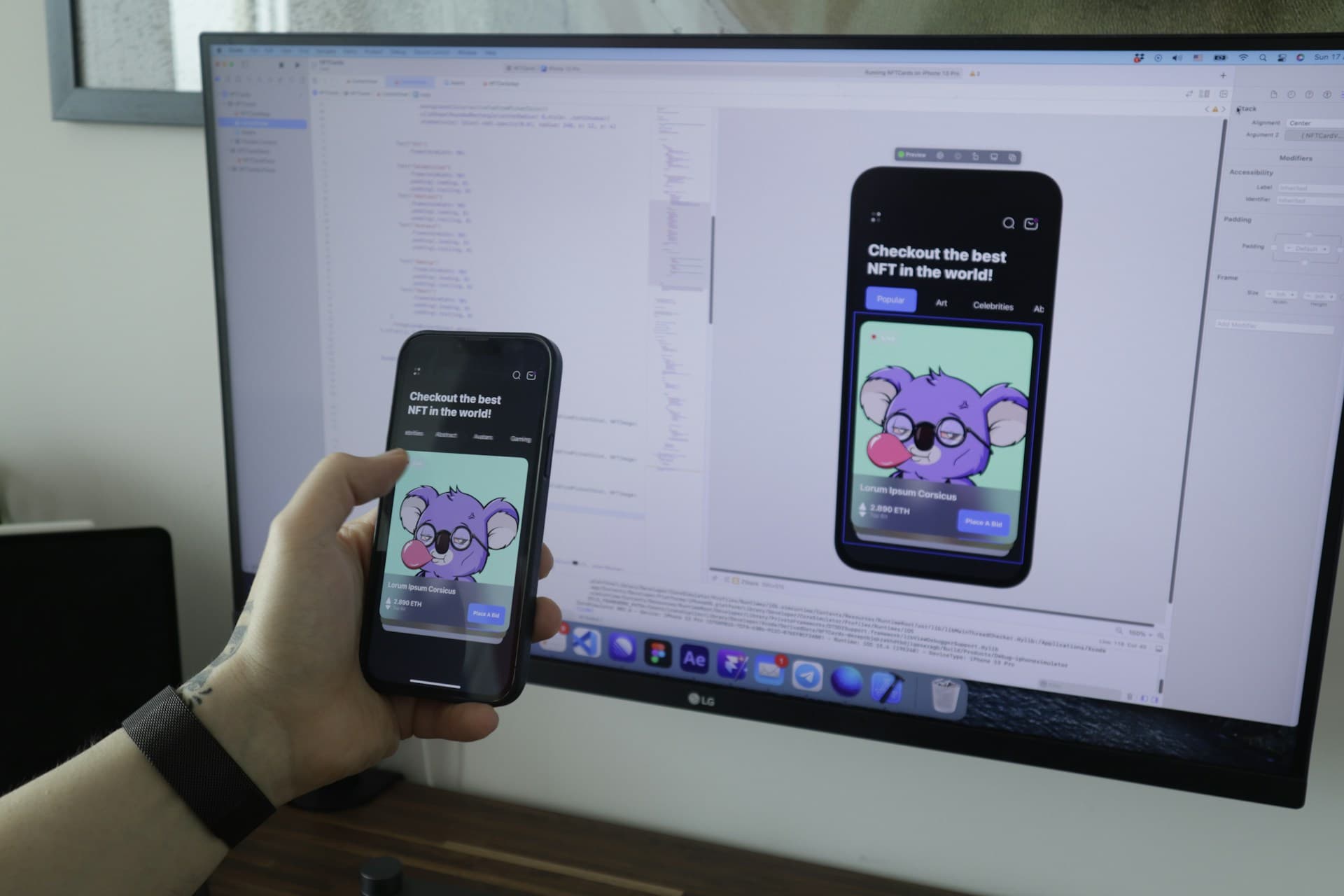
On October 23, Cursor moved a capability previously reserved for its cloud agents onto the machine you actually code on: its agents can now click, type, and screenshot desktop applications, with the signature demo being an agent that opens the iOS Simulator and taps through a signup flow it just built. The news is not the demo. It is the change of venue: a cloud agent clicks inside a disposable virtual machine, while a local agent clicks inside your own session — the same screen that holds your mail, your password manager, and your signed-in browser.

What shipped on October 23
Cross-checking Cursor's announcement on X that day against independent coverage, the feature is called Computer Use. You invoke it by typing @ in an agent conversation and picking Computer Use from the mention menu, or you let the agent choose it on its own "when a task requires it." The 21-second demo shows a user asking an agent running on "This Mac" to add a favorite-trails feature to a hiking app; the agent edits the code, launches it in an iPhone simulator, and taps through it while a banner reads "Cursor is using Simulator." AlphaSignal notes that Cursor announced no accompanying pricing change: updating the desktop app is enough to get it.
The speed of the rollout matters too. As recently as October 6, a Cursor staff reply in the company's forum said local desktop control was "still something we're exploring" with no timeline to share. Seventeen days later it shipped, with no extended public beta discussion in between. That is not a reason to avoid it, but it is a reason to understand the permission model before you try it.
Why "local" changes the whole risk calculation
In the cloud, Computer Use runs in an isolated VM, as Cursor's own docs describe it: each cloud agent gets its own virtual machine with a full desktop environment, and agents use a mouse and keyboard to control the desktop and browser. When the task ends, the environment is destroyed, and the exposure goes with it. Self-hosted workers are similar in spirit: they run on machines you set aside for agents.
The local IDE path is different. The agent runs on your primary machine, in the graphical session you are logged into. Its eyes are screenshots: whatever is on screen can become model input, because seeing the interface is how the agent decides where to click next. That is not alarmism; it follows from how the capability works. A mail preview, a chat notification, an unlocked password-manager entry, or a banking tab that pops up during a test run is, technically, within screenshot range. You can say "I'll close those first" — but that concession proves the point: the safety burden has moved from the platform to your habits.
One common misreading deserves a direct correction. AlphaSignal stresses that "local" here identifies the machine being controlled; it does not mean the model runs on-device. Reasoning still happens in the cloud, which means screenshots leave the machine to become the next action. Treating "local agent" as "data never leaves my computer" is the single most likely misunderstanding of this release.
Two permissions, one helper: the easiest mistake to make
On macOS, Computer Use needs two system permissions: Accessibility, to interact with apps, and Screen Recording, to capture their interfaces. The critical detail, from Cursor's self-hosted docs and independent walkthroughs, is that both must be granted to a helper app named Cursor Computer Use — not to Cursor itself, not to Terminal, not to iTerm. The docs put it bluntly: granting Accessibility or Screen Recording to Terminal, iTerm, agent, Cursor, or Cursor Agent Helper does nothing for computer use.
The helper installs at ~/.cursor/cursor-computer-use/Cursor Computer Use.app, with bundle ID co.anysphere.cursor-computer-use. Grants follow the app's code-signing identity, so do not copy, re-sign, or rebuild the helper. For self-hosted workers the commands are agent worker --computer-use start, and agent worker debug only confirms the helper is installed — it does not report permission state. The documented verification is a real task: open a browser and take a screenshot; if the screenshot shows up in chat, the grants work.
For teams managing Macs with MDM, there is a further constraint: Cursor ships no .mobileconfig, so you build your own. Accessibility can be silently allowed on most macOS versions, but the docs warn that Apple deprecates silent allow starting with macOS 26.2. Screen Recording cannot be allowed by a profile at all; the documented workaround is AllowStandardUserToSetSystemService, which lets a standard user approve it without an admin password. Linux workers are a separate setup: they drive an X11 display and need xdotool, ffmpeg, and the X11 utilities installed by you, while desktop sharing — a teammate watching or taking over the agent's desktop — is Linux-only, runs on an isolated desktop the worker creates, and keeps clipboard transfer blocked.
Before you type @Computer Use: five habits that shrink the blast radius
First, give agent work its own macOS user. Screen Recording grants belong to the user who approves them, and a worker uses the logged-in GUI session of the user running it. A second account keeps your personal session out of screenshots, and it is the cheapest isolation available.
Second, close what you would not paste into a prompt. Mail, chat, a password manager, a banking tab: if it is on screen, assume the model can see it.
Third, write narrow tasks. "Launch the iOS Simulator, open the app, go through signup, and screenshot each screen" is easier to verify than "test the app." Narrow tasks leave less room for the agent to improvise, and less work for you when reviewing screenshots and diffs.
Fourth, turn it off between sessions. Remove Cursor Computer Use under System Settings → Privacy & Security when you are done, and grant it again next time. Treat the grant as a one-time door pass, not a permanent credential.
Fifth, review the diff as usual. An agent clicking through a flow proves that flow worked in that run. It does not prove the code is correct, the edge cases are handled, or nothing else broke. A click test is a test run, not a correctness proof.
How this piece differs from nearby coverage
Three nearby stories need explicit boundaries. First, the earlier article on Anthropic's sandbox-runtime is about confining an agent's code execution inside an isolated sandbox — restricting what the agent can touch. This piece is about placing an agent inside your real desktop session — expanding what the agent can see. The directions are opposite: one tightens the execution environment, the other widens the perceptual surface. Second, the earlier GitHub Copilot computer-use article covers Copilot's desktop-operation capability; the vendor, invocation path, permission helper, and documentation are all different, and this piece covers only Cursor's October 23 local IDE path. Third, the earlier OpenAI Ironclad article is a benchmark: contract-flow tasks used to score models. This piece is a shipped product feature and its permission reality: a usage decision, not a scoreboard.
Four questions the documentation does not yet answer
As of writing, four questions about the IDE path remain publicly unanswered: does the agent confirm before clicking in a new app; can you restrict it to an app allowlist; how long are screenshots and action records kept, and where; and does it run on Windows? Independent analysis notes that Cursor's changelog's newest entry at the time of writing was dated October 16, and that permission and approval behavior for the IDE path was undocumented, with existing docs covering the self-hosted worker path. Those gaps are not a reason to refuse the feature; they are the reason to assume, until documented otherwise, that there is no allowlist, no approval promise, and no retention promise — and to plan accordingly, with a separate user, narrow tasks, and grants revoked after use.
The deeper judgment is this: having an agent tap through its own app is a step vibe-development workflows were always going to take. The old loop was human-tap, screenshot, paste back, agent-fix. Now the agent can close that loop itself. What changes for the human is the job: from executing tests to designing test tasks, scoping the screen, and verifying results. That is a welcome shift — provided you first accept that the screen is now a prompt input. Whatever you leave on it is what you hand to the model.
Action checklist for vibe developers
- After updating Cursor, do not try Computer Use first in your main session; run the first task under a separate macOS user.
- Verify the grant target: Accessibility and Screen Recording both go to the Cursor Computer Use helper, not to the terminal or the editor.
- Verify grants with a real screenshot task, not with agent worker debug output alone.
- Write test tasks as checkable steps: which app to open, which flow to follow, a screenshot per screen, and a diff review after changes.
- For managed fleets, plan MDM accordingly: silent Accessibility allow is restricted from macOS 26.2, and Screen Recording cannot be profile-approved at all.
- Until Cursor documents confirmation, allowlists, screenshot retention, and Windows support for the IDE path, plan as if none of them are promised.
Bottom line: the real novelty of Cursor's local Computer Use is not that an agent learned to click. It is that the clicking moved from a disposable VM to your everyday desktop. The demo is 21 seconds long; the permission bill is much longer. Read the bill first.
Comments (0)
Sources
Related articles
On October 24, 2026, coverage converged on Anthropic's sandbox-runtime: OS-native filesystem and network limits for any process, no container required. But the repo dates to 2025, reads are open by default, Windows is alpha, and the 84% figure is a self-reported drop in prompts — boundaries first, then a rollout checklist.

Before connecting a coding agent to your database, build the guardrails: a read-only account, a human-approved write path, least privilege with deny rules, consent gates for irreversible actions, full audit logging, and preview mode — all in one afternoon.
Node.js's October 21 release fixed the Brotli decoder out-of-bounds write CVE-2026-111497. Its root cause had been fixed in source in February but was never recognized as a security issue or shipped, sitting in the repository for eight months. This piece covers the trigger, the two attack directions, the update checklist, and why downstream advisories matter more than upstream activity.