The Complete Obsidian Guide: From Install to Building Your Second Brain
Obsidian is a local-first Markdown note-taking app: free, offline-capable, and built around bidirectional links plus 2,000+ community plugins that turn scattered notes into a living knowledge network. This guide walks you from installation, interface tour, links, graph view and Canvas to plugin picks, sync options, pricing, and a hands-on Zettelkasten workflow, with real screenshots at every step.
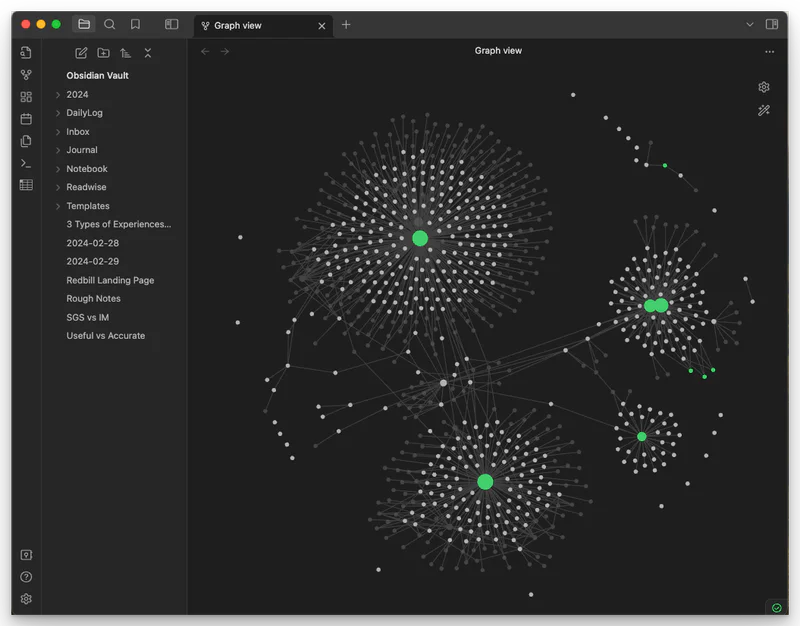
What Obsidian Is, in One Sentence
Obsidian is a local-first Markdown note-taking app: every note is a plain-text .md file on your own hard drive, locked into no company's server. It is free (for personal and commercial use), works offline, and runs on Windows, macOS, Linux, iOS, and Android.
But that is only the starting point. What truly sets Obsidian apart is that it treats notes as a web, not a pile of folders: any two notes can reference each other with [[bidirectional links]], the app automatically tracks who links to whom, and renders the whole relationship network as an interactive knowledge graph. With 2,000+ community plugins, it can become a task manager, a research database, a writing studio, even a personal website.
It is built by Dynalist, a Canadian company of fewer than 20 people with no outside funding, surviving on paid add-ons — which means its business model is selling features, not selling your data.
Why Bother: Five Hard Reasons
1. Your data is actually yours. Notion notes live on Notion's servers; if it raises prices, changes policies, or shuts down, migrating is a project. Obsidian notes are Markdown files on your disk, readable in Notepad a decade from now. That "future readability" is the most underrated feature in knowledge management.
2. Free, thoroughly. The core app is fully free with no note limits and no account required. Only add-ons cost money: multi-device sync (Sync) and publishing notes as a website (Publish). Compare: Notion's free tier has real limits, Evernote's free tier is down to 50 notes — Obsidian's free offering is nearly unique in 2026.
3. Offline means complete. On a plane, in a subway tunnel, on a corporate intranet — Obsidian runs at full power. Cloud note apps degrade or quit in those situations.
4. A bottomless plugin ecosystem. 2,000+ community plugins, from Dataview (query your notes like a database) to Excalidraw (hand-drawn whiteboard), spaced repetition, Kanban boards — almost any workflow you want, someone has built.
5. It compounds. Ordinary note apps are "write then archive"; Obsidian is "write then connect". Notes reference each other, and years later a three-year-old spark automatically sits next to last week's project. Folder-based systems cannot give you that compounding effect.
Step 1: Install and Create Your First Vault
Download the installer for your platform from obsidian.md; on mobile, grab it from the App Store or Google Play. On first launch you get three options:
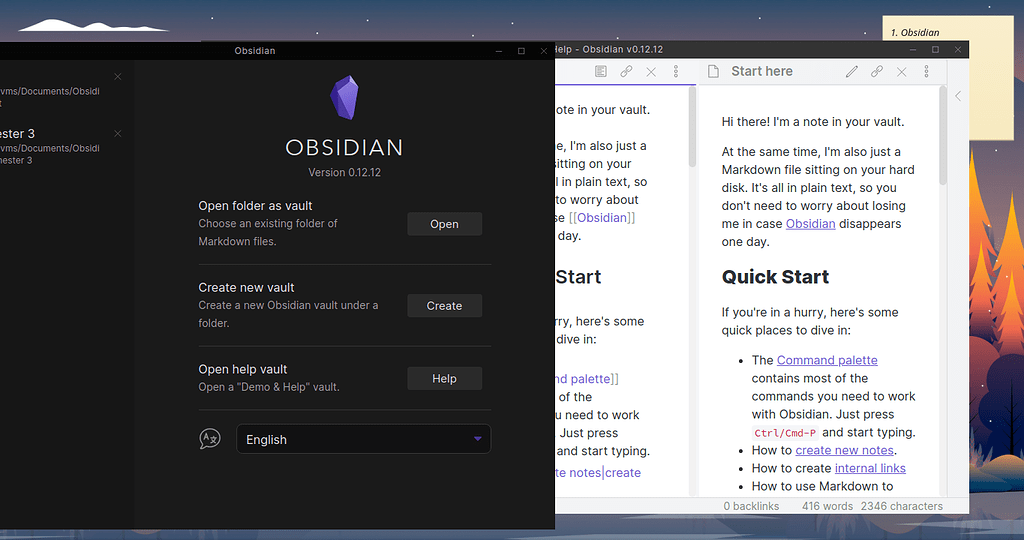
First launch: open an existing Markdown folder as a vault, or create a new one.
Obsidian's core unit is the Vault — essentially a folder on your disk. Create separate vaults per area ("work", "learning", "life") rather than stuffing everything into one: the bigger the vault, the messier the graph and the slower the search.
Tip: if you already have Markdown notes (from Typora, VS Code, etc.), choose "Open folder as vault" on that folder. Zero migration cost — that is the beauty of plain text.
Interface Tour: The Three-Column Layout in 30 Seconds
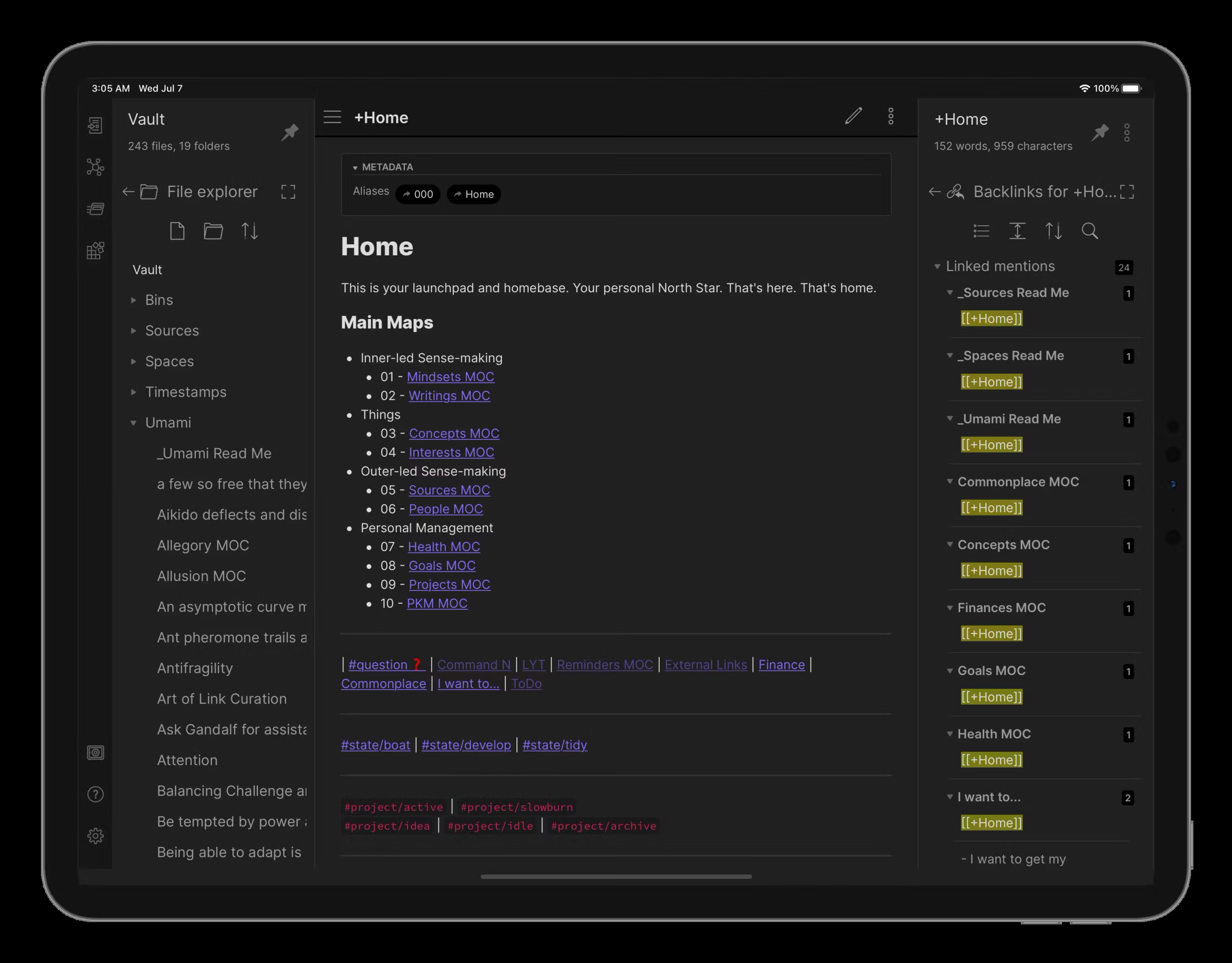
The three columns: files and outline on the left, editor in the middle, backlinks panel on the right — the "radar" of the linking system. Shown on iPad; desktop is the same.
Left: navigation. File list (your folder structure), search (full-text, regex supported), bookmarks, recent files. The command palette (Ctrl/Cmd+P) up top reaches nearly every action by keyboard — the lifeline of power users.
Center: editor. A WYSIWYG Markdown editor with live preview; no toggling between source and rendered views. Split panes and pinned tabs up top.
Right: relationships. This is Obsidian's soul: the Backlinks panel lists every other note that references the current one, and the outline panel shows its heading structure. While writing a "Project A proposal", the right panel automatically tells you that "last week's meeting notes" and "last year's competitor analysis" both referenced it — connections surface on their own, no manual upkeep.
Core Concept 1: Bidirectional Links Let Notes Grow Relationships
Traditional notes are one-way: you write "B is interesting" in A, and B never knows A mentioned it. In Obsidian, typing [[B]] in A does two things at once: A links to B, and B's backlinks panel automatically gains A.
The power is a zero-maintenance relationship web. Example: you note "mental models" while reading Poor Charlie's Almanack, then months later note "confirmation bias" during user research. As long as both link to the "cognitive bias" concept, opening "cognitive bias" shows both notes side by side. No folder taxonomy, no tagging system — the links are the organization.
Practical tips:
· Use [[concept|display text]] for natural reading, e.g. [[cognitive bias|that old mistake again]].
· Spend 5 minutes daily linking the day's fleeting notes to existing concepts — that is the daily fertilizing of your second brain.
· Do not chase "link everything"; only link real relationships, or the graph becomes yarn.
Core Concept 2: Graph View Draws Your Thinking
Once notes and links accumulate, hit the graph button (bottom left) and Obsidian renders your whole vault as an interactive web:
Graph view: nodes are notes, edges are references. Dense clusters mean mature knowledge in that area.
The graph is not just pretty; it has three practical uses: find orphans (unconnected nodes whose notes have not joined the system yet — worth adding links); find hubs (the most-connected nodes, usually your core concepts, worth expanding into long-form writing); find surprises (a link between two unrelated clusters is often where new ideas start).
Honest note: below ~200 notes the graph is mostly a toy; past ~500 it starts paying off. Do not take notes for the graph's sake — get the order right.
Core Concept 3: Canvas, the Infinite Whiteboard
Some thinking is linear (writing), some is spatial (brainstorming, comparing options, mapping a project). Canvas is Obsidian's built-in infinite whiteboard: drag notes, images, web cards, and PDFs onto it, arrange freely, connect with arrows.
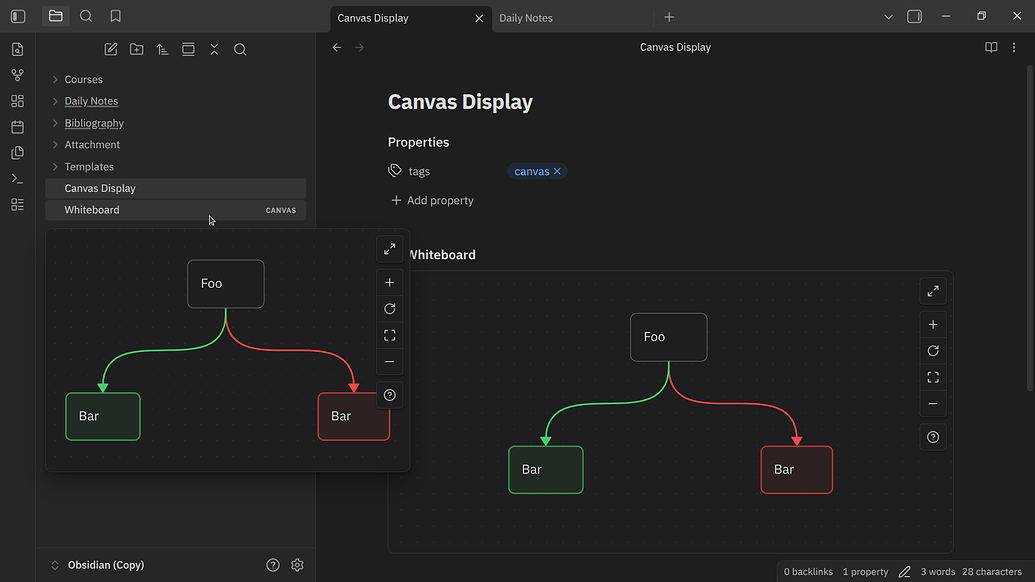
Canvas: cards arranged freely, arrows expressing relationships — built for divergent thinking.
Canvas's killer feature: cards on the board are real notes. Double-click a card to edit its Markdown file directly; the board is just another view of it. Unlike whiteboard tools where the drawing detaches from your notes, here they stay one thing.
Core Plugins in Depth: Strong With Zero Community Plugins
Obsidian ships "core plugins", some off by default. Enable as needed:
Bases (database views). A newer built-in: treat notes with Properties as a database, switching between table, board, and calendar views, filtering and sorting by properties. This used to require the Dataview plugin; now it is native and more stable. Great for reading lists, project tracking, and material libraries.
Templates. Skeletons for repetitive notes — meeting minutes, book notes, weekly reviews each get a template, one click generates uniform structure. Pair with the Templater community plugin (below) for auto-dated daily notes.
Daily Notes. One note per day named by date — the best inbox for fleeting thoughts. Set Obsidian to open today's note on launch: dump ideas there first, triage and link them to concepts in the evening. Standard Zettelkasten practice.
Tags and Properties. Tags (#todo) suit transient states; Properties (YAML frontmatter like status: active) suit structured fields. Remember the division of labor: links handle relationships, tags handle states, properties handle data — do not mix them.
Global search. Regex plus filters by path, tag, and property, e.g. path:reading -tag:archived. Once the vault grows, search beats folder navigation by an order of magnitude.
Community Plugin Picks: 8 Worth Installing From 2,000+
Settings → Community plugins → turn off "Safe mode" → Browse. Ranked by "no regrets":
1. Dataview — notes become a database. Write queries inside notes that aggregate the whole vault. TABLE rating FROM "reading" WHERE rating > 4 SORT rating DESC generates your top-rated book list on the fly. The bedrock plugin of the ecosystem, top installs for years.
2. Templater — templates, complete. The built-in templates plugin only does static replacement; Templater adds variables, date math, input prompts, even JS scripts. Classic use: creating a "project note" auto-fills the creation date, standard sections, and prompts for the project name.
3. Excalidraw — hand-drawn whiteboard. The open-source sketch whiteboard, fully inside Obsidian. Architecture and flow diagrams stored as text in your vault, version-controllable like notes.
4. Calendar — calendar view for your journal. A small calendar in the sidebar; click a day to open its daily note, days with content get dotted automatically. The perfect companion to Daily Notes.
5. QuickAdd — one-key capture. A hotkey pops an input box; what you type appends to a chosen note (e.g. the "fleeting" section of today's journal). Minimizing capture friction is how ideas stop leaking away.
6. Omnisearch — better search. A souped-up replacement for built-in search with fuzzy matching and weighted ranking; the difference shows once the vault is large.
7. Kanban — boards. Markdown-native kanban; each card is plain text, drag-and-drop rewrites the file. Enough for lightweight project management.
8. Style Settings — theme tuning. Adjust fonts, colors, and spacing without writing CSS. Pair with popular themes like Minimal or Things to match your taste exactly.
Warning: install on demand. A vault with 30 plugins at once launches slowly, conflicts often, and upgrades painfully. Run bare for a month; let real pain points choose your plugins.
Sync: Three Options — Sync vs iCloud vs Git
Multi-device is a must, but official Sync costs money. Three routes compared:
Obsidian Sync (official, $4/mo annual). End-to-end encrypted, version history, the most hassle-free cross-platform option. For heavy users and vaults holding important material, just buy it — $48/year to end the debate.
iCloud / OneDrive (free). Drop the vault folder into a cloud drive directory, zero cost. Downsides: occasional sync conflicts on iOS, version history depends on the drive's own. Fine for light users.
Git (free, the geek's choice). The vault is a Git repo; Working Copy / MGit on mobile, commit-and-push workflow. Full version history plus off-site backup as a bonus; needs basic Git comfort. Programmers, look no further.
Whichever you pick, remember Obsidian's bottom line: even if sync dies completely, your local files lose not a word. No cloud note app can promise that kind of peace of mind.
Pricing at a Glance: How Free Is Free
· Obsidian itself: free (personal and commercial, all features, no note limits)
· Sync: $4/mo (annual; $5 monthly), Sync Plus $8/mo annual ($10 monthly, deeper version history)
· Publish: $8/mo/site (annual; $10 monthly), one-click publishing of notes as a public website
· Catalyst: $25 one-time, support development plus early beta access
· Commercial license: $50/yr (for-profit orgs with 2+ people)
The key point: without spending a cent, you get 100% of Obsidian. Sync and Publish are pure add-ons — no "free tier guts the core" games.
Hands-On: The Zettelkasten Card Box in 30 Minutes
Zettelkasten is the most-recommended workflow in the Obsidian community. Three steps, 30 minutes to a working loop:
Step 1: make three kinds of notes. Fleeting notes (ideas as they come, dumped into Daily Notes), literature notes (readings restated in your own words), permanent notes (one idea per note, written completely and clearly).
Step 2: write only in your own words. Copy-paste is not a note. Forcing yourself to restate is the only path to internalization. Title permanent notes as full statements — "spaced repetition beats cramming" rather than "study methods" — the title itself is a claim.
Step 3: link instead of filing. Every permanent note links to 2–3 existing notes. Keep folders shallow (two levels max). Open the graph in three months and watch knowledge cluster on its own.
The classic beginner trap: over-engineering the system. Two weeks building folder hierarchies, tag taxonomies, and templates, with barely any notes written. The right order: write 100 notes first; the pain points will tell you what structure you need.
Head to Head: Obsidian vs Notion vs Logseq
· Obsidian vs Notion: Notion is the all-in-one for teams — block editor and real-time collaboration are unmatched, but data lives in the cloud, offline is crippled, and the free tier has limits. Obsidian is the extreme of personal knowledge bases — local, free, full power offline, but no real-time collaboration. In short: solo, pick Obsidian; team, pick Notion — many power users run both.
· Obsidian vs Logseq: Logseq is also local Markdown plus bidirectional links, open source and free. The difference is philosophy: Logseq is outline (bullet) first, for structured thinkers and task management; Obsidian is long-form (document) first, for writing and deep knowledge work. Writers pick Obsidian; task-driven folks can try Logseq.
FAQ
Q: How is Chinese language support?
A: Interface, search, and links all handle Chinese fine. One caution: avoid special symbols inside [[ ]], keep filenames reasonably short — Windows is picky about certain characters when syncing cross-platform.
Q: Is the mobile app any good?
A: Official iOS/Android apps cover note-taking and graph viewing fine. But plugin-heavy vaults are noticeably laggier on mobile than desktop — keep mobile to core plugins, leave heavy ones (big Dataview queries etc.) on desktop.
Q: Does it slow down with many notes?
A: Plain text plus local indexing handles thousands of notes effortlessly. Past ~10k: disable unused plugins, use local graphs instead of the global view, and it stays smooth.
Q: How do people combine it with AI?
A: Mature patterns: semantic search over the vault with Smart Connections / Copilot plugins ("find old notes related to this project"); feeding the vault as context to Claude/GPT for summaries; the Markdown library drops into AI tools with zero conversion. Another dividend of local plain text.
Q: Is my data safe? Can I lose it?
A: Local files plus any backup (Time Machine, cloud drive, Git) = triple insurance. More reliable than any "we back up to the cloud for you" promise, because you hold the controls.
Closing: Who It Is (and Is Not) For
Just install it: researchers, writers, lifelong learners, programmers (technical notes in Obsidian plus Git sync is an excellent experience), anyone with strong feelings about data ownership.
Think twice: teams needing real-time collaboration (go to Notion), people who only jot two lines (the built-in notes app is faster), anyone allergic to Markdown and unwilling to learn (the learning curve is real; the first week feels awkward).
One honest closing thought: tools do not produce knowledge; people do. Obsidian's greatest value is not how pretty the graph is or how many plugins exist — it is that the humble design choice of "local files" removes your anxiety about depending on a tool. Your thinking deserves a container that will never betray it. Head to obsidian.md, create your first vault, write your first note, and link your first [[ ]].
Related articles

On October 3, engineer Kevin Liao published a polemic that hit the HN front page: agent memory plugins are a lottery over RAG snippets; what agents need is a documentation workspace. The essay's diagnosis, its open-source Operator Memory plugin, the two strongest objections, and the minimal practice you can start tonight.
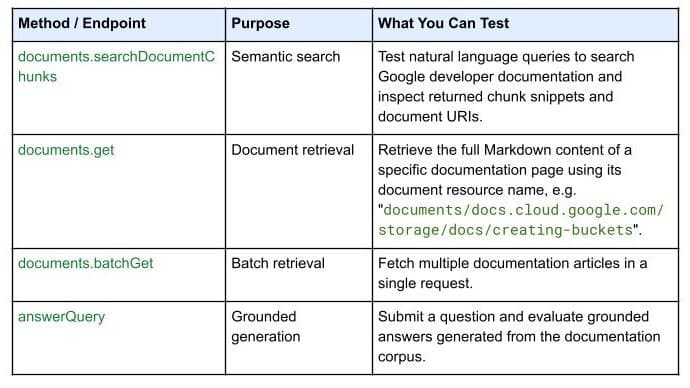
On October 7, 2026, Google Developers launched the Developer Knowledge API ecosystem: official Google Cloud, Firebase, and Android docs as a programmatic source of truth, with a gcloud CLI surface, an official Agent Skill (one-line install), an MCP server, and multi-language client libraries. Why 'docs as APIs' uproots vibe coding's classic failure of models misremembering APIs.

Gergely Orosz visited OpenAI, Anthropic, Cursor, and Ramp and wrote up the 2026 state of the industry: near-100% AI-generated code, agent PRs up ~10x in eight months, code review degrading into theater, the IDE declared legacy. Key takeaways plus three verdicts and four actions for vibe coders.