Don't Make Users Download First: File Preview for Vibe Projects
Preview is the first gate for any file product: confirm in three seconds that this is the right file. Rendering choices per file type, security boundaries, mobile, and performance — in that order.
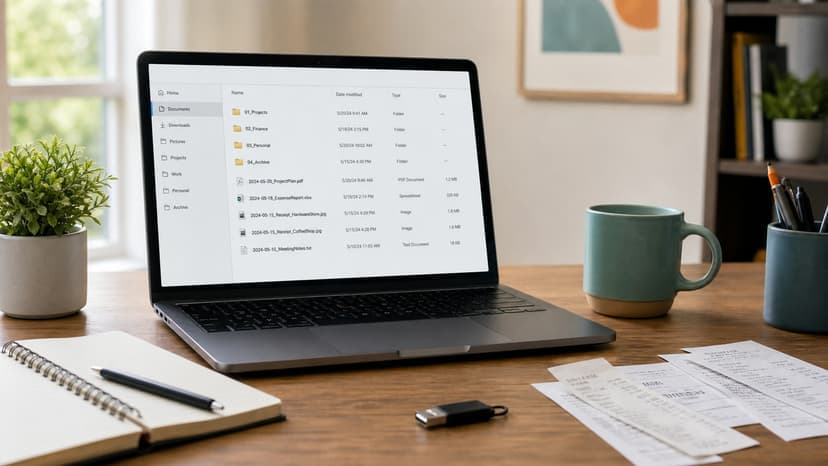
The verdict first: preview is not a "nice extra" — it is the first gate that decides whether a user stays

Every product has files: PDF contracts users upload, images, videos, spreadsheets, code, design drafts. What happens when a user clicks one? In many vibe projects, the answer is: the browser starts downloading. The user waits for the download, finds the file, opens it in another app, then comes back to your product. Every extra step loses people — especially on mobile.
My verdict up front: file preview is not a finishing touch; it is the first gate for any file-centered product. The moment a user opens a file, they have exactly one question: "is this the thing I am looking for?" Preview exists to answer that question as fast as possible — see the content within three seconds, confirm it, then decide whether to download, edit, or share. The faster the answer, the more likely the user stays; the slower it is, the more they conclude your product "does not work well", however good everything else is.
This guide covers how to get file preview right: choosing a rendering method per file type, the trade-offs for PDF and Office files, the traps in images and video, security boundaries, mobile, performance, and a shipping checklist at the end. No grand theory — just what a one-person team can start building today.
The product "Fangge Library" and the people and numbers in the examples below are fictional, used only to illustrate the approach; the method itself is general.
Set the principle first: preview exists to "confirm", not to "edit"
Before building anything, fix preview's job description: preview is for confirming content, not for working on it. When a user opens a preview, they want to confirm: is this the file I wanted, is the content right, is the version current. Editing, annotating, and converting formats are the next step, not this one. Get the job wrong and preview keeps growing heavier — online editing, annotations, format conversion — until none of it works well.
Given that job, preview design has three rules. First, content must be visible within three seconds of the first screen. Past three seconds without rendering, users conclude it "will not open" and go download instead. Three seconds is the ceiling, not the target — if it can appear in one second, do not let it slip to three. Second, always keep a "download original" exit. Preview is a shortcut, not the only path; however good the preview is, it cannot replace the original file, and the download button must stay visible. Third, when preview fails, degrade gracefully: show the file's information (name, size, type, upload time) plus a clear download button — not a blank page or an error code nobody understands.
Choose a rendering method per type: one comparison table is enough
Different file types need completely different preview methods. Here is the table, then the trade-offs one by one.
Images are the simplest: browsers natively display JPEG, PNG, WebP, GIF, and AVIF, so almost no extra work is needed. But there are two traps. The first is HEIC: photos from Apple devices default to HEIC, which browsers cannot open — it must be transcoded to JPEG on the server or decoded in the frontend, or iPhone users cannot even see their own uploads. The second is EXIF orientation: phone photos carry orientation data, and without handling it you get sideways photos. Read the EXIF data and rotate accordingly, or fix orientation when generating the thumbnail.
PDF is the second most common type, with three routes. The first is the browser's built-in reader: modern browsers include a PDF viewer, so an iframe or embed tag just works, at zero cost — the downside is that styling and features are controlled by the browser, so watermarks, download blocking, and custom toolbars are out of reach. The second is pdf.js: Mozilla's open-source library renders PDFs to canvas, giving full control over the interface, paged loading, and custom watermarks — at the cost of maintaining it yourself and slow first loads for large files. The third is server-side conversion to images: every page becomes an image, which gives fully controlled rendering and natural copy protection, but costs storage and conversion time. My advice: ship with the native browser route first, upgrade to pdf.js when you need it, and only convert to images when you must prevent downloading — do not pick the heaviest option first.
For video and audio, the key is streaming rather than whole-file download. Video needs hosting that supports Range requests, so users see the beginning as soon as they click instead of waiting for the entire file; and it needs a poster frame, so there is a picture before playback instead of blackness. Audio is the same: show a waveform or duration first, then stream. Transcoding is the other reality: user-uploaded video comes in every format, and converting everything to H.264 + AAC in MP4 is the safest choice, with the best mobile compatibility.
Office documents (Word, Excel, PowerPoint) are the hardest category because browsers cannot open them. There are three common routes. First, hand the file URL to Microsoft's or Google's online viewer — zero development and good rendering, but the file passes through a third-party server, which raises privacy and compliance problems; internal files, contracts, and financial data cannot go that way. Second, convert to PDF on your own server with LibreOffice — the file never leaves your infrastructure, but conversion takes time and complex layouts may shift. Third, show only "metadata preview": document title, page count, row count, uploader, plus a download button — admitting "this type cannot be previewed inline" while giving the full picture. My advice: public material can use an online viewer, internal files should go through LibreOffice to PDF, and whatever cannot be converted should honestly show metadata plus download rather than pretending.
Code and plain text are the most overlooked category, and the easiest to do well: syntax highlighting by language, line numbers, support for jumping to a line, and a copy button. For developer users, a highlighted preview with line numbers is far faster than downloading and opening an editor. Archives (zip, tar) should not be unpacked for full preview: list the files inside with their sizes, and let the user download one file individually — that is enough.
Security boundaries: preview sits closest to user-uploaded content
Preview sits closest to what users upload, so its security boundaries must be thought through first. First, validate content type: judge type by the file header (magic number), not the extension. An executable renamed to .jpg will betray itself in its header; a system that trusts extensions will serve it as an image. Second, sandbox isolation: preview content must run in a separate sandboxed iframe with scripts disabled and no access to the parent page. PDF and HTML files deserve extra caution — a crafted HTML file can run scripts inside the preview and steal a user's session.
Third, access control: preview links must not be "anyone with the address can view". Use signed, short-lived links that expire, and enforce permission checks on the server, with preview and download sharing the same permission logic — never a gap where "downloading needs login but preview does not". Fourth, virus scanning: files should be scanned before entering preview; scanning can be asynchronous, but unscanned files should not enter the preview queue, and at minimum the preview page should note that the security check is incomplete.
One more that is easy to miss: derived files from preview — thumbnails, transcoded videos, PDF page images — need the same permission controls and expiry cleanup. Many teams lock down the original file while leaving thumbnails on a public path, which is an unlocked back door to the original.
Performance: slow preview reads as "broken" to users
Preview performance has a single goal: show content as soon as possible after the click. Four techniques get there. First, thumbnails first: list pages load thumbnails only, and the original or high-resolution preview loads only when a detail view opens; thumbnails are generated at upload time, not computed during preview. Second, lazy loading and paging: PDFs render only the current page plus its neighbors, videos load only the segments near the playback position, and large images serve a low-resolution version first that sharpens progressively. Third, caching: the preview result for a file is cached, so the second user to open it gets a hit without re-transcoding or re-rendering.
Fourth, tiered degradation: on a slow connection, serve a low-resolution image, a text summary, or file metadata first, so the user can confirm "this is my file", with high-resolution content following. Degradation is not cutting corners — it puts the core job of "confirming" at the highest priority. The metric for preview performance is direct: time from click to first content on screen. Record it and review the trend weekly; it beats any subjective impression.
This should be distinguished from the file-storage-and-CDN topic: that guide covers where files live, how they upload, and how they are distributed; this one covers how a file is "seen" once it reaches the user. Storage solves "having it"; preview solves "seeing it". Both done well is what makes file features complete.
Mobile: the preview gap opens up on phones
However good desktop preview is, if mobile lags behind, the gap shows immediately. Mobile needs three things handled separately. First, touch gestures: PDFs need swipe-to-turn and pinch-to-zoom, images need pinch-to-zoom and swipe-between, videos need fullscreen and scrubbing. On desktop these are mouse wheel and clicks; on mobile, one missing gesture is felt instantly.
Second, data and battery: on mobile, do not load the high-resolution original first — serve a compressed version and load high-resolution only when the user asks; do not autoplay video, play on tap. Third, system sharing and opening: mobile users often want to "open in another app" or "share with a colleague", so the preview page must offer "open with another app" and "share" exits instead of locking the user inside your previewer.
One more detail: mobile browsers support fewer file types than desktop — HEIC photos, some Office formats, and text files in unusual encodings fail more often on phones. When mobile preview fails, the fallback copy must be especially clear: tell the user "this file cannot be previewed directly on this device", then offer the download button — never leave them staring at a blank page.
Accessibility and details: preview quality shows in edge cases
Preview accessibility is often forgotten, but it decides whether the product can be used by everyone. Image previews need alt text — at minimum the filename and a basic description; PDF previews must keep their text layer so screen readers can read content instead of seeing an image; all action buttons (zoom in, zoom out, next page, download) must work from a keyboard, with a sensible focus order.
Some details are invisible until they break. Long filenames should be truncated in display but fully visible on hover; file sizes should be shown in human-readable units, not a string of bytes; upload times should show relative time ("3 days ago") plus absolute time; multi-page PDFs should show "page 3 of 12" so users know where they are. Versioning is worth doing too: if a file is overwritten, the preview page should show history — or at least mark "this is the latest version" or "you are viewing an old version".
Finally, handle empty results: if a file is corrupted, transcoding failed, or the type simply cannot be previewed, the page should say three things — what happened, why, and what the user can do now (download the original, contact the uploader, re-upload). The more specific the error message, the less users feel the product itself is broken.
The shipping checklist: in this order
First, make the "download original" exit solid before talking about preview. Preview is the bonus; download is the baseline. Second, fix the rendering method per file type in a table: images natively, PDF via the browser first, video and audio streamed, Office starting with metadata plus download, then upgrade as needed. Third, security first: header validation, sandboxed iframe, signed short-lived links, and the same permissions on derived files — all four before preview ships.
Fourth, generate thumbnails at upload time, and load only thumbnails in list views. Fifth, verify mobile separately: gestures, data use, sharing exits, and fallback copy — all required. Sixth, record time from click to first content on screen, and review it weekly. Seventh, prepare a graceful failure path: file information plus a download button is always better than a blank page.
Back to the opening line: preview's first job is letting a user confirm "this is my file" within three seconds. Every choice and every optimization serves that one goal. Once the goal is fixed, the trade-offs are clear: build what helps users confirm faster; however advanced, skip what makes them confirm slower.
Comments (0)
Related articles

Cognition released SWE-2 Flash on November 4: three times faster at one-fifth the price of SWE-2, free through November 30. The real story is the new mid-training stage — and the decision to keep the weights private.

OpenAI released Images 2.6 on November 4: GIFs in ChatGPT and Codex, reusable reference images, and two API models — Flare for speed, Sunburst for consistency. Speed is the least interesting part; memory and motion are what change the workflow.

Logs are the product's flight recorder — but only if they are written by the rules. Structure, levels, correlation IDs, fields, redaction, sampling, and retention: seven things a one-person team can ship today.