Don't wait for complaints to discover bad printouts: print output for vibe projects
Invoices, itineraries, and contracts that print broken make a product feel unfinished. Print stylesheets, five pagination traps, link and QR handling, scenario checklists, and pre-launch tests; examples are fictional.
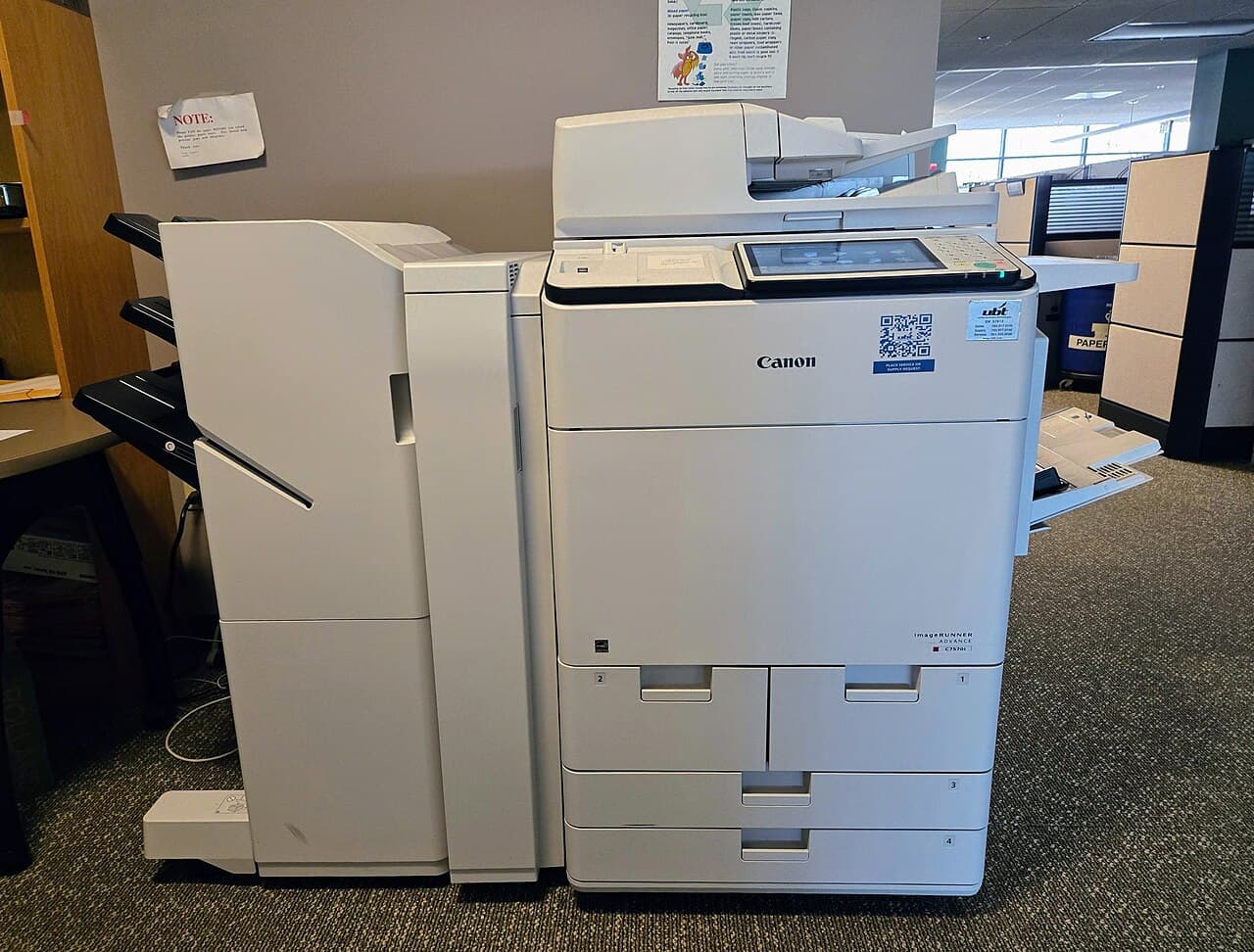

Every product has a page like this: users look at it on screen every day, and one day they need to print it. An invoice, an itinerary, a contract, a report card, a recipe, boarding information — no matter how beautiful it looks on screen, if the printout drops characters, breaks lines awkwardly, or drags along a pile of navigation buttons, users will feel the product is unfinished. Worse, print problems usually surface only through complaints, because developers themselves almost never click the print button.
This guide treats printing as a real feature, not an afterthought patch. The examples below are fictional: Egret Books is a fictional independent bookshop, its owner Gu Nan is a fictional person, and the orders and amounts are invented purely to illustrate the techniques. They do not refer to any real business.
Start with what the user actually needs to print
Before writing any code, answer three questions. First, does the user need the whole page or just one part of it? An invoice needs only the order section, an article needs only the body text, a dashboard might need only one chart. The answer changes the implementation entirely: full-page printing can be handled with a print stylesheet alone, while partial printing usually needs a dedicated print view or temporarily hiding everything else. Second, is the printout for reading or for filing? Reading needs comfortable font sizes, line height, and whitespace; filing needs complete header information, clear page numbers, and no missing key fields. Third, will the paper be used again afterwards? A printed itinerary shown at an airport is more useful with a QR code than with a bare link; a printed contract needs space reserved for signatures.
Egret Books is a typical case. Gu Nan noticed customers screenshotting the order confirmation page to send to their finance teams, and the screenshots mixed in navigation bars, recommended products, and a chat button — finance kept asking "which order is this, exactly?" The fix was not to teach users to stop screenshotting. It was to add a "Print order" button that prints only the order itself: book titles, quantities, unit prices, totals, order number, order time, and pickup method. The clearer the print target, the easier the print stylesheet is to write.
Print stylesheets: is @media print enough?
For most vibe projects, the starting point is a @media print stylesheet, and its main job is subtraction: hide the navigation bar, sidebar, action buttons, floating chat entry, and ad slots, leaving only the content. A practical convention is to mark "screen-only" elements with a shared class name, then hide that class in print styles. That way, every new button you add later only needs the class to stay out of printouts automatically.
Then comes addition: font sizes, line height, and color for print. Body text at 14px on screen often prints too small; 11pt to 12pt with roughly 1.5 line height usually reads better on paper, because paper reading has a different rhythm from screen reading. Color needs special care: browsers do not print backgrounds by default, so a card with a dark background may print as black text on white — sometimes more readable, sometimes losing information. If "paid" is green and "pending" is orange, a black-and-white printout cannot tell them apart. The fix is never to rely on color alone: always print the words "Paid" or "Pending" next to the status. Where color must be preserved — a company seal, a brand mark — print-color-adjust: exact tells the browser to keep it, but warn users it costs more ink. Reserve it for elements that genuinely need it, not whole-page backgrounds.
Pagination: the five most common failures
Most print failures are pagination failures. First, table headers vanish across pages: a long table prints onto page two and nobody knows what each column means. Set thead to display: table-header-group so headers repeat on every page. Second, a block gets cut in half: a paragraph or a card split across two pages. Use break-inside: avoid on key blocks, but not on everything, or you will end up with large blank gaps. Third, headings separate from their content: a heading at the bottom of one page, its text on the next. Use break-after: avoid to keep a heading with what follows it. Fourth, images separate from captions: a chart on one page, its caption on the next — same treatment. Fifth, page count explodes: the user wanted one page and got three because a footer or recommendation block was not hidden. Every time you change print styles, count the pages in print preview.
One more detail: headers and footers. Browsers automatically add the page URL and date to printed pages, and some browsers let users turn that off. Never put critical information only in the browser-generated header, because the user may disable it. Order numbers, print times, and company names belong in the content itself, at the top or bottom of the content area — not in the browser's header or footer.
Links and QR codes: paper has no hyperlinks
Links on screen cannot be clicked on paper, and this is the easiest thing to forget. There are two treatments. The first is to print the destination: for action links like "track shipment" or "download e-invoice," a print rule such as a[href]::after { content: " (" attr(href) ")"; } appends the URL after the link text. Two cautions: exclude in-page anchors (like #section), which are meaningless on paper; and very long URLs will wreck the layout, so apply this only to key links or use short links. The second treatment is to replace the link with a QR code: itineraries, pickup slips, and event entry passes that need to be scanned on site are far more useful with a QR code than with a URL string. When generating the code, make sure it points to a page that works without login, or at least to a page that clearly says "please log in first" — not a dead end discovered at the venue.
Egret Books' order printout was changed exactly this way: the "track shipment" link became a tracking number plus a short note in the printed version, and a pickup QR code sits at the bottom right with the words "show this code in store for pickup." After the change, finance stopped asking follow-up questions, and customers no longer had to dig through their phones for screenshots at the counter.
Checklists for three typical scenarios
Invoices and receipts: no key field may be missing — both parties' names, order number, date, line items, tax, total, and payment method. Use a monospace font for amounts so 1 and 7, or 0 and O, stay distinguishable in print; for large amounts, add thousand separators, or write the amount in words as well. Set the print width for A4 and do not assume any particular printer model.
Itineraries and vouchers: the priority is "find the key information at a glance." Departure time, place, order number, and QR code belong at the visual centre, not buried in paragraphs. Write times in full — date, weekday, and timezone — never "tomorrow at 9am," which depends on context. If cancellation or change policies matter, print them too; do not leave only a "see website for details" link.
Articles and reports: readability is everything. Strip everything unrelated to the body text, caption every chart, give complete citation sources, and allow natural pagination while avoiding orphaned headings. For reports, print the generation time and data scope at the end — for example, "data as of 31 October 2026" — so that a paper copy found months later still shows its own freshness boundary.
Pre-launch print testing checklist
Before shipping a print feature, run through this list. First, open print preview in Chrome and at least one other browser, and confirm no hidden elements leaked through. Second, choose "Save as PDF" and check page count, repeated table headers, orphaned headings, and link display. Third, print one copy on a real printer and confirm colors, font sizes, and that QR codes actually scan — screen preview and real printing often differ, especially on margins. Fourth, try a different paper size: A4 and Letter have different widths, and wide tables easily overflow on Letter. Fifth, test with long data: a 50-line order, an 8,000-word article — is pagination still decent? Sixth, check dark mode: a user printing from dark mode must get light background with dark text, never a dark background printed as-is.
One final judgement: printing is not an edge feature to get around to someday. It is the last link in user trust. When a user prints your page, they are taking your information beyond the screen — to finance, to a client, to airport staff, to their own archive. Every error on paper costs your product credibility in the real world. Put print styles on the formal acceptance checklist, spend an afternoon running the tests, and you buy back every future moment a user would otherwise have spent apologizing for your product. That is a good trade.
Fallbacks when printing fails
Even the best print stylesheet meets browsers that do not support it, printers out of paper, and users who do not know how to operate print dialogs — so printing needs fallback tiers. Tier one is "Save as PDF": alongside the print button, offer a "Download PDF" entry, generated server-side or via the browser's print-to-PDF, with the same layout as the printed version. Users without printers can still forward, file, and archive a PDF. Tier two is "Send by email": email the order or itinerary to the user, with key information in the email body rather than only a link — because the user may open that email somewhere without network access. Tier three is a plain-text version: for extreme cases (old browsers, unusual devices), a style-free text page that at least keeps all key fields in a sensible order. The principle of fallbacks: each tier down should lose polish, never information completeness.
Egret Books ran into exactly this: an elderly customer could not use print preview, so staff emailed the order to him and his family printed it at home. The feature did not get more complex, but one extra path covered one more group of users. When designing fallbacks, think about who is most likely to fail at printing: people unfamiliar with browsers, people without printers, people on weak networks. Give each of those groups a path, and the print feature is genuinely usable.
Putting print into the acceptance process
Print problems recur for a simple reason: no process owns them. Three items belong in the team's acceptance process. First, for any new page users may need to keep (orders, contracts, vouchers, reports), the launch checklist must include "print preview checked," with a preview screenshot or PDF attached. Second, ask during design review, "what does this page look like printed?" — not after development, when a hidden navigation bar or overflowing table is discovered too late. Third, whenever a page's structure changes (a new sidebar module, a changed table column count), re-run print preview instead of assuming "it printed before, so it prints now."
One organizational suggestion: name a print owner. Not necessarily a full-time role, but someone accountable for print quality. Many teams' print problems persist precisely because they belong to nobody: frontend thinks it is product's job, product thinks it is a detail, and the detail drags on until it becomes a complaint. With one owner, the problem list, test screenshots, and fix records all have a home, and print quality improves a little every release instead of being rescued from zero each time. Good printing never trends on social media — but bad printing reliably tops the complaint list. That trade is worth making deliberately, inside the process.
Comments (0)
Related articles

A/B testing is hard not in split code but in experiment design: enough traffic, metric layers, stable random buckets, and four classic misreadings. Examples fictional; distinguished from canary releases.

Leaked passwords are routine, and a password alone cannot guard an account that can delete data, spend money, or see other people's data. This guide covers TOTP enrolment, verification, and recovery: verify before enabling, one-time backup codes, a 5-attempt lockout, and revocable trusted devices.

After launch, errors happen where you are not watching. This guide builds production error tracking for a vibe project: capture, scrubbing, fingerprinting, source maps, sampling, alerting, release health, and a solo dev's daily triage.