Put your web app on the home screen: a PWA install guide for vibe projects
Skip the app store review queue: with HTTPS, a manifest, and a service worker, users can add your web app to their home screen. Manifest fields, caching strategies, prompt timing, iOS manual steps, and a 30-minute launch rehearsal.
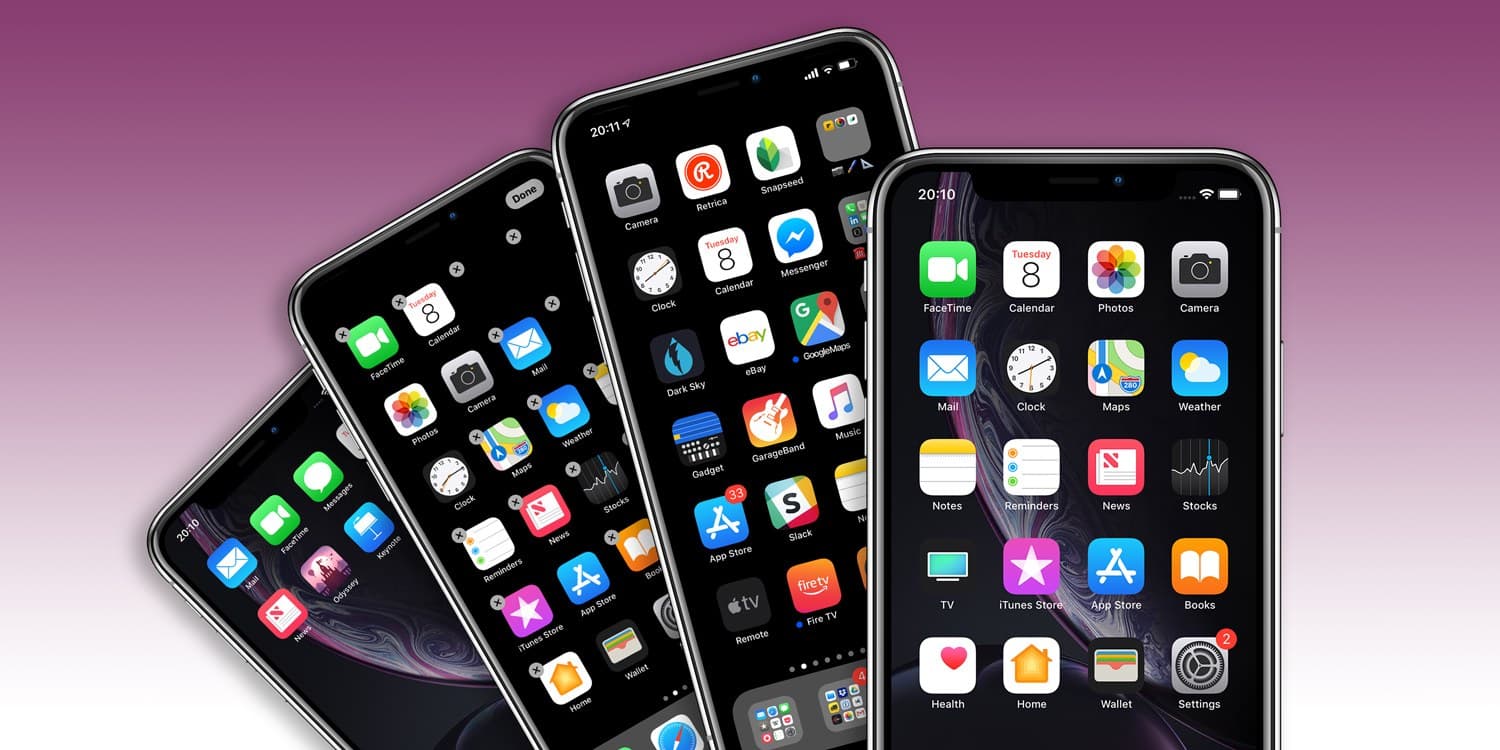
The pitch: getting your web app onto the home screen beats the app store for small teams

Many vibe projects are web apps: finished, accessible, and then forgotten the moment the user closes the tab. App store submission means review queues, binary builds, and annual fees, a heavy lift for a small team. A progressive web app's "Add to Home Screen" offers a lighter path: with one tap in the browser, your app appears on the home screen as its own icon, with a splash screen, fullscreen launch, and an app shell that opens even offline, all without any store review.
This guide walks that whole path: the web app manifest, the service worker, the timing of the install prompt, the special handling iOS requires, and a pre-launch testing checklist. The example project and figures in this article are fictional and exist only to illustrate the method. One boundary note first: this site has previously published guides on local-first design and offline sync, which cover what happens to data when the network drops. This article covers installability itself, icons, launch behavior, install prompts, and update flows. The two complement each other without overlapping.
Three hard requirements, all of them mandatory
Browsers generally consider a page installable only when three conditions hold at once. First, the page is served over HTTPS, with localhost excepted for local development. Second, it has a valid Web App Manifest declaring its name, icons, and launch behavior. Third, it has registered a service worker that actually takes control of the page, even a minimal one. Miss any one of the three and no install prompt appears. Many developers debug prompt logic for hours when the real cause is one of these three items being unmet.
The debugging order matters too: first check in DevTools' Application panel whether the manifest is recognized and the icons are complete, then whether the service worker registered and activated, and only then whether the install prompt event fired. Debugging in reverse wastes a great deal of time. The fictional example project "Recipe Book," a web app for saving and organizing recipes, was debugged in exactly this order: first a missing 512-pixel icon was found, then a service worker registered under the wrong scope, and once both were fixed the prompt appeared immediately.
The manifest: every field maps to something the user sees
The manifest is a JSON file the browser uses to decide what your app looks like and how it launches. The fields most often gotten wrong are worth going through one by one. The name is the long name shown under the home screen icon, and short_name is the fallback when space is tight. Write both, and keep short_name under about twelve characters, or it will be truncated. Icons must include at least 192 and 512 pixel sizes, and at least one must be declared with the maskable purpose: Android crops icons into circles or rounded rectangles, and a regular icon loses its corners, while a maskable icon includes a safe margin so cropping stays clean.
For display, standalone is the usual recommendation: the app opens without the browser address bar and feels like an independent app. If your app depends heavily on browser features such as share sheets or payment redirects, start with minimal-ui and move to standalone once those flows are verified, rather than discovering a broken critical flow after launch. The start_url is the first address opened when the user taps the icon: use a clean home path, never one carrying tracking parameters, which would make every launch look like a different page in analytics and could confuse caching. The scope defines what the service worker can control, and start_url must fall inside scope, or installability checks fail. The theme_color and background_color set the status bar color and the splash screen background respectively; matching them to the icon's dominant color keeps the launch transition from flashing white.
Icons deserve their own triple check. First, an icon must not be mostly transparent with large empty margins, or it will look like a smudge on a dark home screen. Second, the 512-pixel icon must genuinely be 512 pixels, not a small image upscaled. Third, after changing an icon, clear caches before judging the result: both the browser and the system launcher may cache the old icon, and seeing the old one does not necessarily mean the configuration is wrong.
The service worker: a minimal implementation still has four jobs
The service worker is the PWA's backstage manager, and even a minimal implementation has four jobs to get right. First, precache the app shell: the home page, stylesheets, scripts, and images required for launch, cached at install time, so the app can at least open its interface skeleton offline instead of showing the browser's default offline error. Second, prepare an offline fallback page: when users open the app with no connection, they see a page you designed, saying cached content is still viewable, rather than a cold system error.
Third, use different caching strategies for different things: cache-first for static assets such as styles, scripts, and icons, with version numbers driving updates; network-first with cache fallback for business data such as recipe lists and user favorites, so offline users see their last data labeled as offline. Using one strategy for everything loses on both performance and freshness. Fourth, keep updates under control: when a new service worker version installs, do not silently take over a page the user is currently using. Wait for the next launch, or show an in-app "new version available, tap to refresh" notice and let the user confirm. A silent takeover can refresh a form the user is halfway through filling in, and that experience loss far outweighs updating a little later.
One more question to settle early: cleaning up old service worker versions. Every release should confirm old caches are removed by version, or the user's device accumulates three or four versions of cached assets that only grow. Versioned cache names plus deleting non-current caches on activation are two lines of logic to write from version one, not something to add after users report the app occupying 500 megabytes.
The install prompt: timing matters ten times more than button design
On Android, Chrome fires the beforeinstallprompt event when conditions are met, and developers can capture it, hold it, and trigger it later from their own button at the right moment. The worst practice is prompting on the user's first visit: the user does not yet know what your app does, so why would they put it on their home screen? After one refusal, the browser will not offer the system prompt again for a while, and that one opportunity is wasted.
The recommended timing is after the user has already received value. The fictional Recipe Book shows its "Add to Home Screen" button only after the user saves a third recipe or returns for three consecutive days, and the button copy sells the benefit, not the technology: "Put Recipe Book on your home screen and open it in a second next time," rather than "Install app." Only when the user taps does the saved prompt event fire. After a refusal, wait at least thirty days before prompting again, and change the reason, for example "You have saved 20 recipes, home screen access would be handier," rather than repeating the identical prompt.
Also handle the already-installed state: listen for the appinstalled event, or use the display-mode media query to detect standalone launches, and stop showing the install button to users who already installed. Continuing to push installation at installed users is one of the clearest signs a product has never been seriously used by its own team.
iOS: no automatic prompt, so teach the user manually
iOS is the most special case in PWA installation. Safari does not support the beforeinstallprompt event and offers no automatic prompt. Installation happens only manually: the user taps Share, then "Add to Home Screen." That means on iOS you cannot wait for a prompt; you must actively teach the user, with a three-step illustrated guide, Share, then Add to Home Screen, then Confirm, shown after the user has completed something meaningful. Use illustrations in the real iOS interface style; do not teach iOS users with Android screenshots.
iOS has further details worth separate attention. First, icon and splash screen handling differ from Android, and an apple-touch-icon must be provided separately, or the home screen icon will look poor. Second, storage in a standalone iOS app is not fully shared with Safari, so login state and caches may require the user to sign in again; if your app depends heavily on login state, say so in the guide copy before installation, so users are not confused by a fresh login after installing. Third, do not use a fullscreen blocking overlay the moment iOS is detected. Guidance should appear after the user already values the product, and it must always be dismissible.
The iOS strategy in one sentence: on Android you wait for the system prompt and pick your moment; on iOS you teach the user yourself, with one good illustration. Both paths need building. Missing either one loses half your audience.
Pre-launch testing: real devices, icons, updates, all three must pass
The testing checklist has three groups, and every group must be verified on real devices; emulators are only good for early checks. Group one, the install flow: on a real Android device, from a never-installed state, confirm the prompt logic triggers as designed; on a real iOS device, follow the illustrated guide to add manually, and confirm the icon, name, and splash screen are correct; launch from the home screen and confirm the address bar is gone and launch works. Group two, icons and launch: view the icon against both dark and light wallpapers to confirm the maskable safe margin works, and cold-launch once to check the splash screen, confirming background and theme colors match with no white flash.
Group three, the update flow: install the old version, ship a new one, and confirm the old page is not silently refreshed, the user sees a "new version available" notice, and tapping it switches correctly to the new version. Then open the app with no network and confirm the shell and fallback page work and cached content is viewable. If any group fails, do not suspect the browser first. Recheck the three hard requirements and the manifest fields; nine times out of ten the problem lives there.
Measurement: installs and repeat visits are what count as done
After launch, measure two things. First, install conversion: record install button impressions, taps, and appinstalled successes, and compute the conversion of each step. Many impressions with few taps point to timing or copy problems; many taps with few successes point to installability conditions or guide problems. Second, repeat-visit change: compare seven-day return rates and session lengths between installed and non-installed users. The value of PWA installation ultimately shows up in repeat visits, not in the vanity metric of install counts.
Watch the measurement definitions: use display-mode to separate standalone launches from browser launches instead of mixing them together, and note that install success cannot be directly observed on iOS, so iOS install volume can only be estimated indirectly from launch sources. Report that definitional difference honestly rather than presenting estimates as exact numbers. Writing the definitions down matters more than making the numbers look good.
A thirty-minute launch rehearsal: walk the whole journey once
If the checklist above feels long, this thirty-minute rehearsal covers it. Minutes zero to five: in DevTools, confirm the manifest is recognized, the 192 and 512 icons are present, and the service worker is active. Minutes five to fifteen: on a real Android device, walk the install flow from a never-installed state, complete installation, and launch from the home screen, confirming the address bar is gone. Minutes fifteen to twenty-five: on a real iOS device, follow the illustrated guide to add manually, confirming the icon and name are correct and login behavior matches expectations. Minutes twenty-five to thirty: ship a new version and confirm the old page is not silently refreshed and the user sees an update notice.
The value of these thirty minutes is that they cover every critical node of the user journey: discovery, installation, launch, and update. Many PWA problems are not "could not be built" but "nobody ever walked the whole journey": the developer saw the manifest in an emulator and assumed it was done, while the icon, login state, and update notice on real devices were never verified. Thirty minutes for one complete journey is the highest-return investment before a PWA launch.
Anti-patterns: seven things not to do
To close, seven anti-patterns. First, prompting for installation on the first visit, before the user has received any value. Second, transparent-background icons or upscaled small images that look smeared on the home screen. Third, start_url carrying tracking parameters, corrupting launch analytics. Fourth, one caching strategy for everything, mixing static assets and business data together. Fifth, a new version silently taking over a page where the user is mid-form, losing their input. Sixth, never cleaning old caches, letting the app grow indefinitely. Seventh, continuing to push installation at users who already installed, revealing the product was never seriously used by its own team. Avoid all seven, and your PWA install flow is already above the average vibe project. What remains is waiting for users to see your icon on their home screens every day.
Comments (0)
Related articles
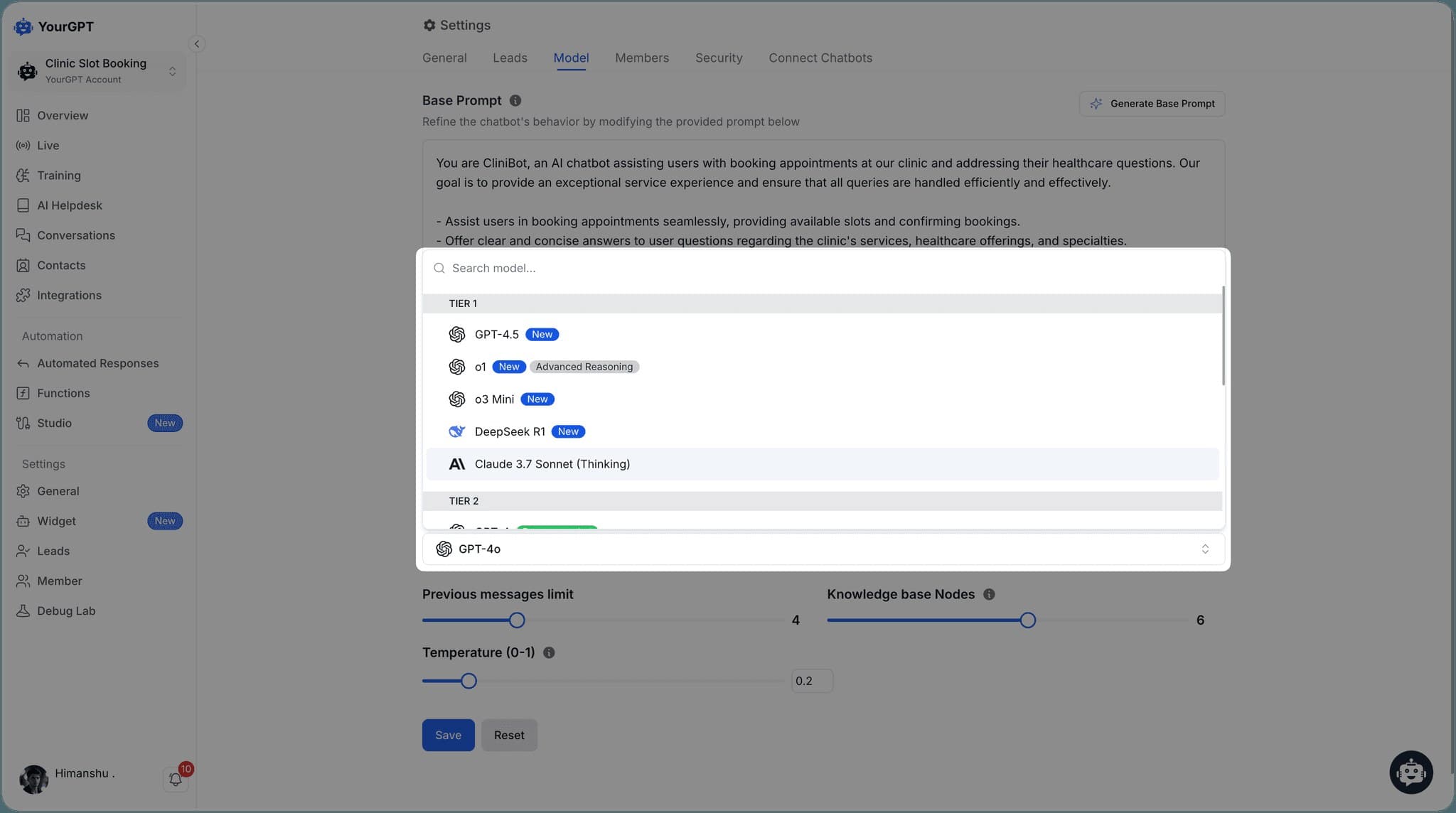
Models get deprecated, rate-limited, and repriced. Stop hardcoding model names: define capability tiers, keep one routing table with a fallback chain, classify failures before retrying, and tell users when a paid tier steps down.
Social login cuts signup friction to one click — but its real costs hide in account merging, state and PKCE, and token storage. This guide covers OIDC vs OAuth, provider choice, merge rules, and the pre-launch test list.

Export is a move, not a download button. This guide covers scope, formats, the request-to-expiry flow, and true portability — plus the permission boundaries that keep export from becoming a leak.