The Help Center Playbook: Shipping Self-Serve Docs for Your Vibe-Coded Project
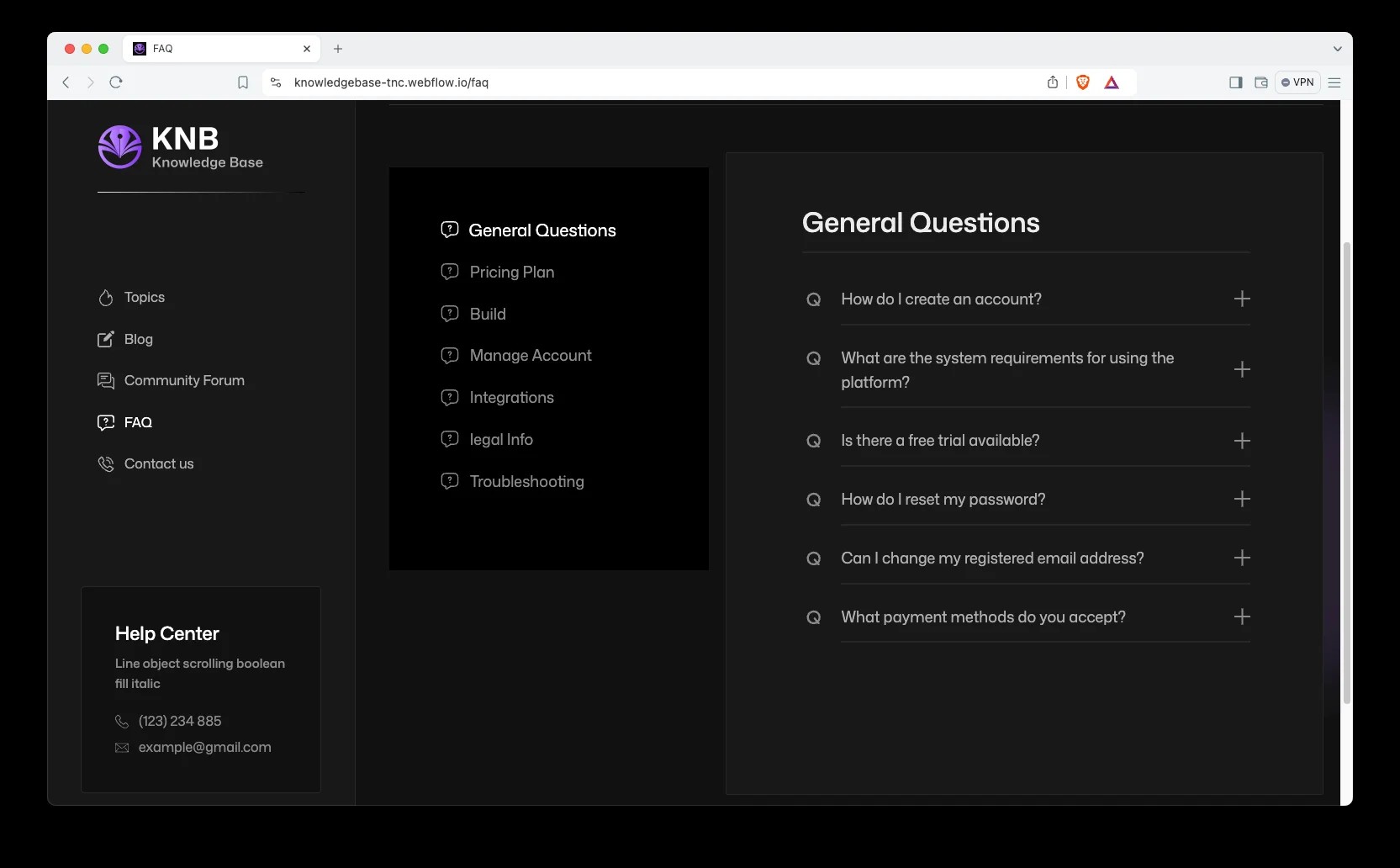
Great UX can't answer policy questions, error-message searches, or pre-purchase trust checks. This guide gives solo developers a shippable help-center methodology: a four-quadrant matrix for what to document, a 6-category IA template, writing skeletons for 6 article types, a three-stage AI-drafting workflow from your codebase, a minimal docs-as-code setup for one person, a release-tied doc-debt checklist, and a monthly 1-hour maintenance SOP.
It's 1 AM. Your SaaS launched three days ago. Your support inbox holds 11 emails, and 7 of them ask the same question: "How do I get a refund?" You spend half an hour writing one reply and paste it 7 times. The next morning, 5 more arrive.
That's the real loop of a solo project: you vibe-code an app in a week with AI, then spend three months personally answering questions that documentation should have answered. This guide gives you a way out — a help center one person can actually maintain. Not an enterprise knowledge base, but a "write little, serve long" self-service docs system. It covers: when to write docs instead of fixing UX, what belongs in docs and what doesn't, a 5–7 top-level category template, writing templates for 6 article types, a workflow for letting AI draft docs from your codebase, a minimal docs-as-code setup for one person, a doc-debt process tied to each release, and a monthly 1-hour maintenance SOP.
1. Why Great UX Still Can't Replace a Help Center
A common illusion: make the product intuitive enough and you won't need docs. That judgment is half right — good UX does reduce confusion, but it can never cover four scenarios.
Scenario one: the user's question isn't "how do I use this," it's "can I trust this." "Will my data be used to train models?" No interface, however intuitive, can answer that, because it's a policy question, not an interaction question. The user wants a commitment in black and white — something they can screenshot, forward, and quote. Without a help center, you end up hand-writing that commitment in email, over and over.
Scenario two: error messages. API returns 402, sync fails, import stuck at 87% — in those moments the user isn't thinking inside your app; they're in a search engine. Their search term is the error message verbatim, not your feature name. Without a docs page carrying those error strings, you hand that traffic to guesswork on Reddit and Stack Overflow.
Scenario three: the pre-purchase trust check. Here's a pattern I've observed: the more willing a user is to pay, the more likely they are to search "your product name + pricing / refund / cancel" before paying. A product with complete billing docs and one where you can't even find "how to cancel" are two different tiers in the user's mind. The help center here isn't a cost center — it's part of the conversion funnel.
Scenario four: the training-data dividend of the AI era. This is the new variable in 2026. Users increasingly ask an AI assistant first instead of searching your site. When someone asks ChatGPT "how do I export data from XX tool," the AI's answer comes from public material it was trained or retrieves on. Your help center articles are the only public source of facts about your product that you control. Without them, the AI can only invent your features from guesswork — and users will treat the invention as your promise.
So the conclusion is blunt: for a solo project, a help center isn't a nice-to-have for "when there's time." It does four jobs at once — support deflection, long-tail SEO, purchase trust, and AI-answer corpus. And the cost, done the way this guide describes, is about one weekend to set up, then one hour a month.
2. What Goes In, What Stays Out: A Four-Quadrant Decision Matrix
The biggest docs trap for solo projects isn't writing too little — it's writing in the wrong place. Some content shouldn't go into the help center at all. My decision matrix has just two dimensions: question frequency (high/low) and answer complexity (one sentence vs. needs steps or judgment).
| Simple answer (one sentence) | Complex answer (multi-step / needs judgment) | |
|---|---|---|
| High frequency | Don't write docs → fix the product. Answer it in the interface itself (empty-state copy, tooltips, links inside error messages). Docs are only a temporary bandage here. | The help center's home turf. Write it as a how-to or troubleshooting article. |
| Low frequency | Don't write docs → one line in the FAQ, or a support macro. A standalone article is waste. | Depends. Money- and data-related topics (refund policy, data export) are worth writing; pure edge cases go to human support. |
Three concrete judgment calls. First, "how do I change my password" — high frequency but a simple answer; the right move is a prominent entry point on the settings page, not an article teaching users to click through three menus. Second, "webhook signature verification failed" — low frequency but a complex answer, and the reader is a developer; it deserves an API doc. Third, "which payment methods do you support" — high frequency and answerable in one sentence; it belongs on the pricing page itself, taking at most one line in the FAQ.
One more rule of thumb: anything you've copy-pasted twice in support email is a debt you owe your docs. Write it down — that's your help center's first article list. It starts from "what you've already answered," not "what users might want to know." That list is always more accurate than categories planned from thin air.
3. Information Architecture: A 5–7 Top-Level Category Template
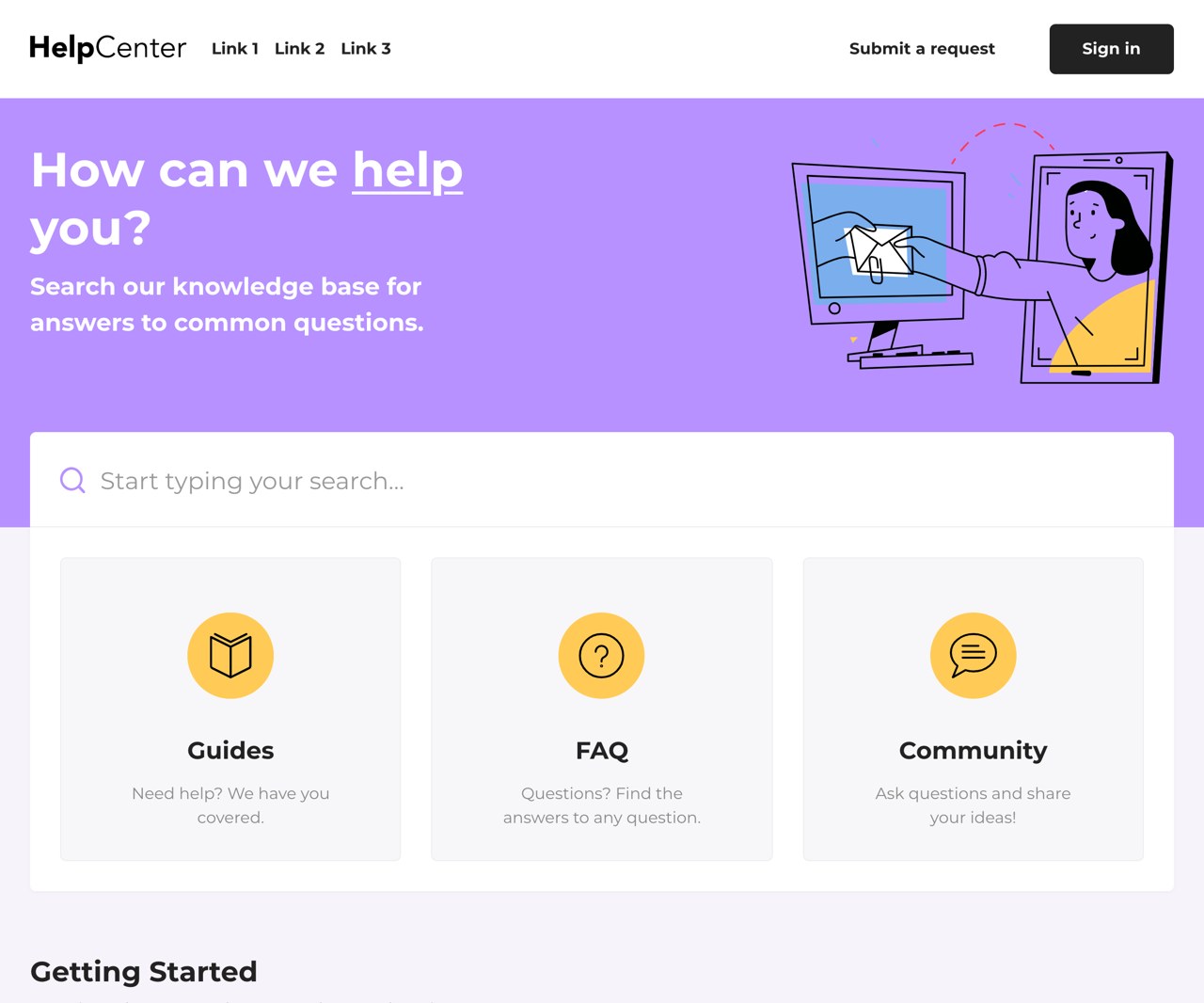
Categories aren't organized by your feature modules — they're organized by user tasks. Users arrive with a task: "I want to get started," "I'm stuck," "I want to pay / get a refund," "I want to integrate the API." My recommended generic template for solo projects is 6 top-level categories; 90% of SaaS and tool products can adopt it directly, trimming or adding as needed:
- Getting Started — exactly 3 articles: what the product is (in 50 words), a 5-minute quickstart, core concepts / glossary. New users only ever read this category.
- How-tos — organized by task, not by feature. Titles must start with a verb: "How to import data from Notion," not "About the import feature."
- Troubleshooting — organized by symptom. Titles use the exact words the user sees: "Sync stuck at 87% — what to do."
- Account & Billing — pricing, upgrade, downgrade, cancel, refund, invoices. These 6 are the trust foundation; none can be missing.
- Developers (API & Developers) — only if you have an API / webhooks / integrations. If not, delete the category; don't pad it with "coming soon."
- Changelog & Known Issues — release notes plus problems being fixed. This is the "honesty" category; leaving it empty is better than lying, but a permanently empty one says you ship too rarely.
The seventh category is optional: Security & Privacy. Break it out separately if your product handles user data or targets enterprise/developer users; for a pure consumer gadget, fold it into Account & Billing or the FAQ.
Title Formula: Write What Users Search, Not What You Want to Say
A help center article title isn't an essay prompt — it's a search query. Three formulas cover 90% of cases:
- The "How do I …?" form — "How do I export my data?" not "Data export feature." Users search for actions, not feature names. Same in Chinese: lead with "如何…".
- Error message verbatim — put the exact error copy the user sees into the title or the first sentence: "What does 'Payment failed: card declined' mean." Search engines' love of exact matches makes this article hit precisely.
- "vs / compare / difference" form — "Free vs Pro: what's the difference," "Monthly vs annual: which is better." These titles serve purchase decisions and carry the highest conversion value.
One anti-pattern to avoid: don't title with internal jargon. You call the feature "Smart Sync"; users search "sync." Put the user's words in the title and explain Smart Sync in the body. The test is simple: read the title to a friend who's never used your product — if they can guess what the article is about, it passes.
4. Writing Templates for the 6 Article Types
The scariest part of writing docs solo is "starting every article from a blank page." The 6 templates below each give a fixed skeleton. Copy the skeleton, fill in the blanks — 10 minutes per article is a normal pace.
Type 1: Quick Start
Goal: get the user to their first valuable action within 5 minutes. Structure: ① one sentence on what this guide gets you → ② prerequisites (account, permissions — one line) → ③ steps 1-2-3 (one sentence each + one screenshot or "click where") → ④ success signal ("you'll see…") → ⑤ next-step links (2). Iron rule: more than 5 steps isn't a quick start — split it into a how-to.
Type 2: How-to
Structure: ① when you need this (one sentence) → ② steps (numbered, one action per step) → ③ caveats / limits ("Note: free plan limited to 100/month" — after the steps, never interrupting the flow) → ④ related articles. Assume the reader is smart but busy: don't write "click the blue submit button," write "click Submit." Annotate screenshots with red boxes around only the key area; one image, one point.
Type 3: Troubleshooting
This is the highest-deflection article type, so its structure must be fixed: ① symptom (the exact text the user sees, verbatim) → ② most likely cause (lead with the highest-probability one; don't list 8 in logical order) → ③ fix steps (easiest first) → ④ still stuck? (one sentence: what to include when contacting support — e.g. "attach a screenshot of the error and your account email"). Key judgment: one troubleshooting article fixes one symptom. An article covering three errors gets fewer search hits than three articles covering one each.
Type 4: Billing Docs
Structure: ① the one-sentence answer up front ("You can cancel anytime with pro-rated refunds.") → ② the actual rules (price, cycle, refund window — as a list) → ③ steps → ④ exceptions. The writing standard for billing docs is "courtroom standard": assume a meticulous user will quote you word by word. Delete weasel words ("generally," "usually"); if a rule can't be stated precisely, go figure out your own billing logic first — writing billing docs often surfaces bugs in your billing logic itself.
Type 5: API / Developer Docs
A solo project's API docs don't need to be exhaustive — they need to get someone running. The minimal set: ① 5-minute quickstart (one curl from auth to first successful call) → ② authentication → ③ request/response examples for core endpoints (only the 3–5 most used) → ④ error code table → ⑤ webhook event list (if any). Every code example must genuinely run — copy, paste, swap in your key, and it works. An example that doesn't run hurts more than none at all.
Type 6: Changelog / Known Issues
One sentence per changelog entry: what changed + what it means for the user ("Fixed garbled Chinese characters in CSV export" beats "fix: encoding" a hundredfold). A known-issues list is a trust multiplier: writing publicly "we know sync occasionally fails on Safari, fix expected next week" beats letting users hit it themselves and conclude "this product is unmaintained." My take: a known-issues page is the cheapest trust investment a small team can make. Big companies won't write one; you will — that's differentiation.
5. Letting AI Draft Docs from Your Codebase: A Concrete Workflow
This is the vibe coder's home advantage: your codebase is itself raw material for docs. AI-drafted docs aren't "have AI write an article" — they're a three-stage pipeline with explicit inputs and outputs at each stage.
Step 1: feed the AI the right raw material. Don't dump the whole repo. Pick inputs per article type: for a how-to, the corresponding feature's routes/page components + copy constants; for API docs, route definitions + zod / validation schemas + the error-code enum; for troubleshooting, the error-handling branches + real user error descriptions from your support inbox. The more focused the input, the fewer hallucinations. My experience: keep each pass to "one feature"; cross-feature overviews are written by humans.
Step 2: generate the draft with a constraining prompt. The point isn't to make the AI "write well" — it's to make it "afraid to invent." The prompt needs four hard constraints: ① only write what the input material supports; mark anything unsupported as [NEEDS VERIFICATION], don't invent it; ② steps must reference real UI copy / routes — no vague "click Settings," write the button's actual label; ③ code examples must come from real calls in the repo, no invented parameters; ④ output must follow the article template above. With these four, draft usability moves from "rewrite" to "editable."
Step 3: the human 10-minute verification pass. This step can't be outsourced. The checklist has 5 items, 2 minutes each: ① walk the steps in the real product (90% of errors surface here); ② verify every number: prices, limits, days, version numbers; ③ run every code example; ④ check screenshots/annotations match the current UI; ⑤ read the title once and confirm it's what a user would search. Only then do you publish. My judgment: AI drafting saves "typing time," not "thinking time." Outsourcing verification to AI means outsourcing user-facing promises.
5 Things AI Gets Wrong Most Often
Know these in advance and verification has a target: ① inventing features that don't exist — imagining a feature you never built from a function name; the most common and most dangerous; ② stale steps — describing the flow of an old UI you redesigned last week; ③ wrong defaults and limits — mistaking some constant in the code for a user-facing limit; ④ mixing up environments — writing behavior that only holds in staging as production behavior; ⑤ over-promising — turning "best effort" into "guaranteed," especially in data-security and billing statements. When you see category 5, rewrite the sentence — don't just swap a word.
6. Docs-as-Code for One Person: The Minimal Setup
"Docs-as-code" sounds heavy, but the one-person minimal form is light: docs are Markdown files living in the same repo (or the repo next door), updated with each release. The single core payoff — docs versions and code versions always match. Users read docs for v2.3 and never land on an article describing the v1.0 UI.
Two options; pick one for your situation:
- Route A: Markdown + static site (recommended for most solo projects). Docs live in the repo's
docs/directory, published via a static site generator ashelp.yourproduct.comor a/helppath. Pros: zero cost, versions travel with code, full-text search out of the box, no lock-in. Cons: one half-day to configure theme and search styling. - Route B: hosted docs platform. Pros: friendly editor, search/analytics/i18n out of the box, non-technical people can edit. Cons: monthly fee, content lives on someone else's servers, and versioning usually runs on a separate clock from your release cadence — meaning you need an extra human process to keep them aligned, an ongoing tax on a one-person team.
My judgment: a one-person team picks A, unless a non-technical co-founder needs to edit docs. The practical reason: B's monthly fee is trivial; the real cost is the two clocks — "docs version" and "product version" — which will drift apart sooner or later. A's structure is one-to-one by nature.
Four non-negotiable pieces of the minimal setup: ① search box — 80% of a help center homepage should be search; users come for answers, not to admire your taxonomy; a help center without good search is no help center; ② version stamp — one small line at the bottom of each article, "Last updated: 2026-10-11 · applies to v2.3"; stale articles are instantly recognizable; ③ feedback button — "Was this helpful? Yes / No" at the bottom of each article; that's your future measurement data source; ④ reachable from inside the product — help center links in settings pages, error messages, and empty states. The best-written docs equal zero if users can't find the door.
7. Keeping Docs Fresh: A Doc-Debt Process Tied to Every Release
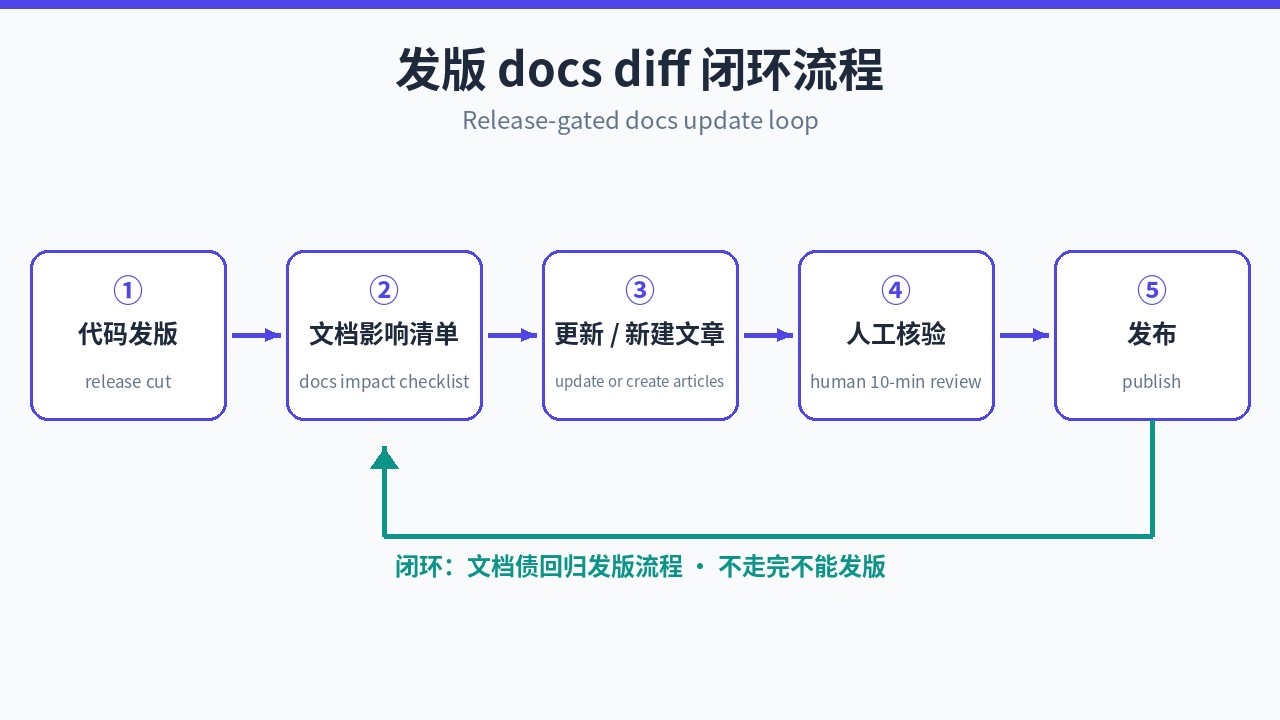
The biggest enemy of docs isn't failing to write them — it's letting them rot after writing. Every solo developer has lived this: v2.0 changed the UI, the docs still show v1.5 screenshots, users follow them, get stuck, and blame the product. The fix isn't "remember to update docs" — it's wiring docs updates into the release process as a checklist item the release can't ship without.
The concrete practice is a "docs diff" checklist: before each release, ask 5 questions; the answers dictate docs actions:
- Did this release change any user-visible UI or flow? → Yes: find affected articles, update steps and screenshots.
- New feature? → Yes: write one how-to per the template, or update the quick start.
- Changed pricing, limits, or refund rules? → Yes: billing docs update the same day, not a day later (this is legal risk).
- Fixed something listed under "known issues"? → Yes: move it to the changelog with the fixed version noted.
- New error messages or error codes? → Yes: write a troubleshooting article titled with the error verbatim.
Execution is light: add one line — "docs diff complete" — to your release checklist (the one you tick before shipping). Combined with the version stamp above ("applies to vX.Y"), even a missed update halves the damage: users can see the article targets an older version.
One companion habit: your support inbox is the docs radar. Spend 10 minutes a week scanning support mail; the second time a question repeats, create a doc (or update an existing article) and add the link to your support macro replies. After three months, 60–70% of your support emails will have a ready docs link to paste — that number isn't a target, it's the natural result, as long as the radar keeps spinning.
8. Measuring: 4 Numbers and a Monthly 1-Hour SOP
Docs measurement doesn't need a fancy dashboard. A one-person team watches 4 numbers:
- Deflection rate — the share of users who didn't contact support after viewing docs. Rough math: help-center UV vs. support ticket volume, compared as a trend. No precision needed; trending up is winning.
- Search-no-result rate — the share of help-center searches with zero clicks on results. This is your topic radar: frequent no-result terms = your next article titles.
- Top 10 articles — review monthly. A troubleshooting article permanently camped at the top is telling you: this product issue should be fixed; the doc is just a bandage.
- "Not helpful" rate — the list of articles where users clicked "No." Anything on it two months running gets rewritten or deleted.
Then the monthly 1-hour maintenance SOP — fixed actions, scheduled for the day after release day:
- 0–15 min: read the numbers. Open the 4 metrics above; note anomalies (a sudden traffic spike, a new search term surfacing).
- 15–35 min: fix the single most painful article. Just one — the most "not helpful" or the most-trafficked stale article. Don't get greedy.
- 35–50 min: write one new article. Pick one from no-result searches or support mail, use a template, and complete the 10-minute verification.
- 50–60 min: sweep version stamps. Check for articles whose "applies to vX.Y" lags the current version by more than two major versions; queue them for next month.
The design philosophy of this SOP is "guaranteed floor": no matter how busy the month, one hour keeps docs from rotting. Do more when there's time; this one hour is the minimum. Docs systems are like code — the enemy of maintenance was never the workload, it's "next time."
Closing: The First Step You Can Take This Weekend
If this all sounds right but heavy, shrink the first step to 2 hours: ① open your support inbox and find the 5 questions asked ≥2 times (1 hour); ② turn them into 5 articles with the templates above, titled in the users' own words (1 hour: AI draft + your verification); ③ spend a Saturday afternoon standing up the Markdown static site, publish the 5 articles, add a search box. The categories, metrics, and SOP all grow naturally once those 5 articles are live.
One judgment to repeat, running through this whole guide: a help center isn't your product's appendix — it's the async support team between you and your users. A solo project's bottleneck is always your time, and docs are the only "write once, serve countless times" time leverage that exists. UX answers "how do I use it"; docs answer "what do I do when it breaks" and "dare I trust it before buying" — those two, no interface will ever replace.
Related articles
Your product isn't bad — it's just unclear. A hands-on playbook for vibe coders: the 5-second headline rule with 6 before/after pairs, a one-job-per-screen page architecture, solo-founder social proof tactics, CTA and form field optimization, plus an AI copy review checklist.

Low traffic means you need experiment design more, not less. A field guide for vibe builders: the three myths (sample-size illusion, peeking, testing only UI colors), a one-sentence hypothesis template with north-star vs. guardrail metrics, a sample-size lookup table and run-length formula, a 30-line Next.js feature-flag middleware with a three-stage rollout, five classic traps with real crash stories, a PostHog/GrowthBook/DIY cost comparison, and a one-page experiment retro template.

AI-generated UI never presses Tab and never turns on a screen reader — accessibility failures are invisible inside its visual feedback loop. This hands-on guide gives you a P0/P1/P2 prioritized checklist, four copy-paste prompt templates, a 30-minute free audit routine, before/after fixes for 6 high-frequency code failures, and a pre-launch acceptance checklist.