Don't Let AI Generate a Pile of contenteditable: Rich Text Editor Integration for Vibe Projects
AI can demo a rich text editor in 200 lines, but paste sanitization, mobile keyboards, and Markdown round-trips are where the real pits hide. This hands-on guide gives solo teams a complete route: a four-axis Tiptap/BlockNote scorecard, the store-JSON/export-Markdown combo, Next.js SSR hydration fixes, a whitelist paste-sanitization pipeline, direct-to-storage image uploads, and a 10-item pre-launch checklist.
Scope note: This guide covers the technical integration of the editor itself, with a clear division of labor against three other guides on this site: vibe-project-help-center-knowledge-base-guide (help center guide) is about "help-center content operations"; this one is about "how to choose and integrate an editor component" — if you ever build a custom editor for a help center, this is the playbook you'd use; docs-written-for-ai-agents (writing docs for AI) is about "how to write documentation for AI to read"; this one is about "how to build an editor for humans" — the audience is the exact opposite; the image-upload pipeline reuses the object-storage approach from vibe-project-file-storage-cdn-guide (file storage & CDN guide).
Ask an AI to add "an editor for writing articles" to your vibe project, and it will deliver in about 200 lines: a contenteditable div with bold and italic buttons, working fine in the demo. You nod, ship it. Then a user pastes a paragraph from Word carrying <o:p> tags and mso- inline styles, and the editor renders the filth verbatim, blowing up styles across your whole site. Someone opens it on an iPhone, the keyboard pushes the toolbar off-screen, and when the keyboard closes the cursor is lost. You try exporting the content to Markdown for your blog, and the tables come back shattered. The rich text editor is the module in vibe projects that looks the most "one-prompt shippable" yet hides the densest minefield — its problems never show up in the demo, only in real users' clipboards and phone keyboards. This guide gives a solo team a battle-tested route: how to decide on a library, what shape to store, how to sanitize pastes, how to upload images, and what to check before launch — all the way down to code you can copy and a checklist you can tick.
1. The Decision Matrix: Scoring Four Approaches on Four Axes
For a solo team, there are exactly four candidate approaches: Tiptap, BlockNote, Slate, and hand-rolled contenteditable. Conclusion first, scorecard after — default to Tiptap or BlockNote, and don't touch the other two. One sentence why: an editor's complexity isn't in rendering, it's in four mountains — cursor, selection, undo stack, and IME input — and mature libraries have already filled 90% of those pits. You can't afford to fill them yourself.
Verified against the official sites on 2026-10-16: Tiptap (tiptap.dev) positions itself as a "headless, open source editor framework" with 100+ extensions and free/paid UI components plus ready-made templates, still actively maintained; BlockNote (blocknotejs.org) describes itself as an open source React block editor with 100k+ weekly installs, built on ProseMirror and Yjs, with the core editor free and AI integration, PDF/Word/ODT export, and multi-column layouts in the paid XL packages. No major changes to either core API surface as of that date; treat the official sites as authoritative for exact version numbers.
Scorecard (out of 5, solo-team perspective)
- Tiptap: Ecosystem 5 (ProseMirror ecosystem + official extension marketplace — when something weird happens, someone has already asked about it); maintainability 4 (headless design, you assemble the UI yourself — freedom, but it means writing the toolbar); bundle size 3 (extensions are tree-shaken, the base isn't tiny); mobile 4 (ProseMirror foundation, mature IME handling). Best for: projects needing a custom toolbar, theme, or exotic nodes — blog backends, docs sites.
- BlockNote: Ecosystem 4 (React-only, smaller community than Tiptap but growing fast); maintainability 5 (block editor with a polished Notion-like UI out of the box — fastest path to something shippable for a solo team); bundle size 3 (same ProseMirror family); mobile 4. Best for: note/doc-style vibe projects where "install it and it looks like Notion" is the goal.
- Slate: Ecosystem 3, maintainability 2 (framework-style API — maximum freedom, but you implement undo, serialization, and paste handling yourself; even its docs admit it's a "framework", not a finished product); bundle size 4; mobile 2 (mobile IME and Android composition input are Slate's historic disaster zones). Pass, for a solo team — unless your editor needs interactions only Slate can express.
- Hand-rolled contenteditable: Ecosystem 1, maintainability 1, bundle size 5, mobile 1. Never choose this. AI-generated DIY editor code passes the demo because the demo only covers the happy path: "type English, click bold". In the real world,
execCommandbehaves inconsistently across browsers, IME input breaks your manual DOM surgery, and the undo stack is yours to maintain — fixing those pits costs weeks, not a few more prompts.
The tiebreaker rule: React stack + want speed → BlockNote; need deep customization or non-React → Tiptap. If you're torn between the two, ask one question — "does my editor need to not look like Notion?" Yes → Tiptap, no → BlockNote. Once decided, don't switch: the editor is one of the most expensive components to migrate.
2. Three Document Shapes: JSON vs HTML vs Markdown — Which to Store
This is the architectural decision you must lock in before starting — changing it later hurts more than switching editors, because it determines what actually lies in your database. No silver bullet, only trade-offs:
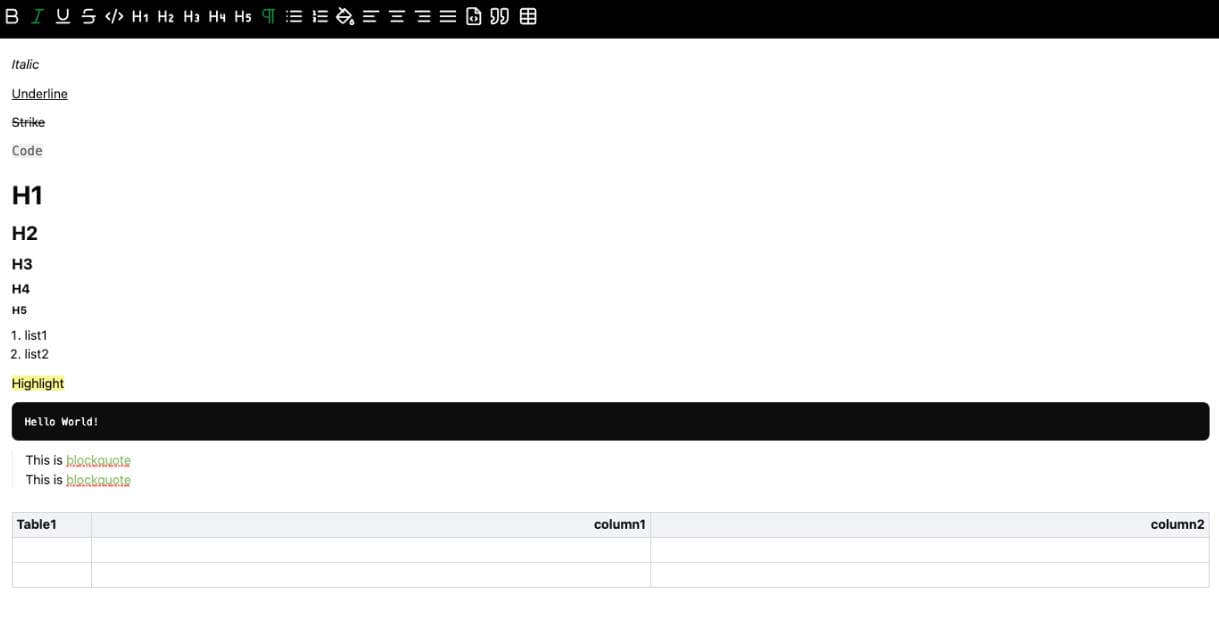
 Screenshot of a Tiptap-based editor interface showing the toolbar and document editing area
Three judgment calls, expanded:
- Query needs set the floor. If you'll ever need "list all articles containing a code block" or "count words and images per article", a JSON document tree lets you walk node types for structured queries; HTML leaves you with full-text search plus regex, Markdown sits in between. Solo teams chronically underestimate this: v1 doesn't need queries, v2's search and recommendations do — and by then, migrating tens of thousands of stored documents costs the most.
- Migration cost sets the ceiling. JSON is bound to the editor's schema (Tiptap's JSON and BlockNote's block structure are mutually incompatible) — switching editors means writing a migration script; Markdown is plain text and moves anywhere. The pragmatic middle ground: store only JSON in the database (the authoritative version) and offer "export to Markdown" — publishing to a blog, feeding AI, and building full-text search all consume the exported Markdown. Authoritative data stays structured; circulating data stays light.
- AI readability is the new 2026 dimension. Your content will be read by AI: RAG, summarization, in-site Q&A. Markdown is the friendliest to LLMs (best token efficiency, most natural structure); JSON is second (clear structure, heavy token overhead); HTML is worst (tag noise eats tokens). That's another reason for the "store JSON, export Markdown" combo — the export step solves AI consumption as a side effect.
One-line decision: store JSON, export Markdown, treat HTML as a render-time intermediate — never persist it. Persisting HTML is the worst choice: it loses structure (semantics die in migration), carries noise (hard for AI to read), and has the largest footprint. Lose-lose-lose.
3. Minimum Viable Integration: Getting the Editor Alive in Next.js
Most vibe projects are Next.js + React, and the first roadblock in editor integration isn't features — it's SSR hydration. Tiptap and BlockNote both depend on document and the selection API, which blow up or hydration-mismatch during server rendering. There is exactly one standard fix: dynamic import with SSR disabled.
// components/Editor.tsx — keep the editor component purely client-side
"use client";
import { useEditor, EditorContent } from "@tiptap/react";
import StarterKit from "@tiptap/starter-kit";

export default function Editor({ content, onChange }: {
  content: any; onChange: (json: any) => void;
}) {
  const editor = useEditor({
    extensions: [StarterKit],
    content,
    // Render immediately, don't wait for hydration: avoids SSR flicker
    immediatelyRender: false,
    onUpdate: ({ editor }) => onChange(editor.getJSON()),
  });
  return <EditorContent editor={editor} />;
}

// Dynamically import in the page with ssr: false
import dynamic from "next/dynamic";
const Editor = dynamic(() => import("@/components/Editor"), { ssr: false });
Three practical judgments:
- Controlled or uncontrolled? Editor internals are extremely stateful (selection and undo stack change every second) — don't build a fully controlled component where every keystroke setStates back into React; it will jank. The correct pattern is uncontrolled editing + debounced onChange: the editor owns its state, and content changes are debounced (~500ms) before being emitted to save as a draft. AI-generated code loves the fully-controlled form — it's the number-one source of typing lag.
- Don't touch collaborative cursors yet. Yjs + Hocuspocus real-time collaboration looks tempting, but it imports a second complexity universe: a WebSocket service, conflict merging, offline sync. The right order for a solo team: ship solid single-user editing first — paste, images, export — and add collaboration only when you have a real "two people editing one doc" user demand. BlockNote ships first-class Yjs integration, but that's a "keep the door open" feature, not a "turn it on day one" feature.
- Autosave is a requirement, not a bonus. Editor crash or an accidentally closed tab loses the draft once, and trust is gone. Debounced onChange should persist to both localStorage and a server-side drafts table. On restore, server wins with localStorage as fallback; on conflict, prompt the user to choose — never decide for them.
4. Toolbar and Slash Menu: Why the AI's "Full-Featured Toolbar" Is Wrong
Ask an AI to generate an editor toolbar and you'll get 20 buttons: bold, italic, underline, strikethrough, H1–H6, quote, code block, ordered/unordered lists, task lists, tables, dividers, links, images, alignment, font color, highlight… It looks complete. It's a disaster. Two reasons: first, every button is a test path — 20 buttons means 20 unknowns of "what happens on paste, can it be tapped on mobile"; second, users never need them all — Notion won precisely by hiding 90% of formatting behind the / command.
A minimal toolbar cut for the job (proven sufficient for blog/docs scenarios):
- Inline: bold, italic, inline code, link (4)
- Block: H2, H3, quote, code block, list, task list (6 — H1 belongs to the article title; disable it inside the editor)
- Objects: image, divider (2)
Notice what got cut: underline (in Chinese typography an underline reads as a hyperlink and confuses users), font colors (wrecks site-wide visual consistency — a solo team has no designer to clean up), headings below H4 (deeper hierarchies make messier TOCs). The toolbar philosophy is subtraction on the user's behalf — every button you withhold today is one fewer "why does the table burst out of the phone screen" bug tomorrow.
The slash menu (type / for a command palette) is the real efficiency core, and it's not hard to build: listen for /, filter as the user types, insert the chosen node on selection. When prompting the AI, don't say "make a Notion-like slash menu" — say: "listen for the / character in body text, pop a floating menu with 8 commands (heading 2 / heading 3 / to-do / code block / quote / image / divider / table), support arrow-key navigation, Enter to confirm, Esc to dismiss; on selection, delete the /xxx text and insert the corresponding block." Spell the interaction details into the prompt, or the AI hands you a mouse-only half-product.
5. Paste Sanitization: The Layer AI-Generated Code Almost Always Skips
Paste is the rich text editor's "real-world entrance": 80% of user content isn't typed, it's pasted — from Word, Notion, web pages, WeChat articles. AI-generated editor code almost never handles paste: the default behavior lets the browser stuff clipboard HTML verbatim into contenteditable, so Word's mso-bidi-font-weight inline styles, Notion's nested divs, and web pages' <script> tags and onclick handlers all walk into your document. That's not just a styling disaster — it's an XSS surface: any user-pasteable rich text entry point is a stored-XSS candidate.
 Screenshot of a Tiptap-based editor interface showing the toolbar and document editing area
The sanitization pipeline has three layers, each with a single responsibility:
- Layer 1: discard at parse time. After grabbing the clipboard HTML, parse it as DOM and immediately kill tags that should never enter a document:
<script>,<iframe>,<object>,<style>. This step's job is "survive first". - Layer 2: whitelist-schema mapping. Only nodes your editor supports may pass: paragraphs, headings, lists, quotes, code blocks, bold/italic/link/inline-code, images. Word's
<o:p>, Notion'sdata-*attributes, unrecognized tags — all downgraded to plain text or dropped. Remember the iron rule: blacklists always leak, whitelists deny by default. You'll never finish enumerating "what's forbidden"; enumerating "what's allowed" is what lets you sleep. Tiptap's paste rules and BlockNote's paste hooks exist for exactly this — don't hand-roll regexes to wash HTML. - Layer 3: attribute-level disinfection. A legal tag doesn't mean legal attributes:
<a href="javascript:alert(1)">has a whitelisteda, but thejavascript:protocol must be blocked; strip allon*event attributes andexpression()insidestyle. Allow onlyhttp(s):andmailto:for links; imagesrconly from your own CDN domains plusdata:(for the small-image case).
One last field lesson: log your interceptions. Every time an illegal tag or attribute is dropped, write a structured log line (timestamp, user, summary of the blocked content). This isn't user surveillance — it's forensics: when someone batch-pastes content carrying malicious scripts one day, you'll see the attack samples in the logs instead of "the editor seemed glitchy once".
6. Images and Attachments: Direct-to-Object-Storage Upload with Placeholders and Retry
For in-editor image upload, the AI's favorite generated approach is "base64 the image into the document JSON". It works perfectly in the demo and acts as slow poison in production: one article with 5 phone photos pushes the JSON toward tens of megabytes — database rows bloat, list APIs slow down, and the base64 strings nuke LLM context windows on Markdown export. There is exactly one correct pipeline: upload images straight to object storage; the document stores only the URL. For storage selection, signed direct upload, and CDN acceleration, reuse the playbook in vibe-project-file-storage-cdn-guide (file storage & CDN guide); this section covers the three editor-side concerns:
- Upload placeholders. The moment the user picks an image, the editor immediately inserts an image placeholder node with a progress bar (local blob-URL preview) while the upload runs in the background. The UX value is enormous: without a placeholder, users assume "the click did nothing" and click again, ending up with 3 copies of the same image. The placeholder's state machine has exactly three states: uploading → done (swap in the CDN URL) / failed.
- Failure retry. When a placeholder fails, don't let it silently vanish — show "upload failed, tap to retry", keep the local preview, and have the retry button reuse the same upload function. Flaky networks make this the hottest path, and AI-generated code omits it nine times out of ten. Also, compress on the client before uploading: squeeze a 4MB phone photo under 200KB via canvas before it leaves the device — one line of code that eliminates 90% of upload failures and CDN bills.
- Deletion and orphaned files. Deleting an image node doesn't delete the file in object storage. For v1 it's acceptable to "run a scheduled script cleaning files unreferenced for 7 days" — but only if image nodes carry a fileId in the document JSON, giving the cleanup script something to check against. Don't wait for the storage bill to scare you into remembering this.
7. Two-Way Markdown: Import/Export and Round-Trip Testing
For blog, CMS, and docs-site vibe projects, Markdown is close to mandatory: users write in Markdown, content publishes to multiple platforms, AI reads it. So the editor must answer two questions: how Markdown comes in (import), and how JSON goes out (export).
Export is the easier half: walk the JSON document tree and emit Markdown per node type. Tiptap documents an official export approach and BlockNote ships Markdown export built in — details live in their respective docs. The real pit is import: parsing Markdown into a document tree must handle nested lists, code-block language tags, and table alignment — an AI-generated regex parser surrenders at the first nested list. Parse with a mature Markdown library (e.g. marked / remark) into HTML or an AST first, then feed it through your Section-5 paste-sanitization pipeline into the document — reuse the sanitization pipeline; don't write a second parser for import. That's what keeps behavior consistent.
Round-trip testing is this section's definition of done, and the pattern is fixed:
// round-trip.test.ts: export then re-import — semantics must survive
const cases = [
  "# Heading\n\nParagraph with **bold** and `code`",
  "- [ ] Task one\n- [x] Task two",
  "| a | b |\n|---|---|\n| 1 | 2 |",
  "```ts\nconst x = 1;\n```",
];
for (const md of cases) {
  const json = markdownToJSON(md);      // import
  const back = jsonToMarkdown(json);    // export
  // Whitespace differences allowed, semantic differences not:
  // heading levels, bold, task check states, table row/col counts must match
  expect(normalize(back)).toBe(normalize(md));
}
Test cases must cover every node type your editor supports, at minimum: multi-level headings, nested lists, task-list check states, code-block languages, tables, quotes, images, links. This test file is the editor's "contract" — when you upgrade the editor version or swap the Markdown library, run it first; only ship when it's green. A solo team has no QA — this test is your QA.
8. Pre-Launch Checklist: 10 Items, Tick Each One
Before the editor goes live, verify these 10 items one by one. Each one is a pit a real user has stepped in:
- 1. iOS virtual keyboard vs layout. iOS Safari doesn't resize the viewport when the keyboard appears — it shoves the page upward, so a fixed-position toolbar gets flung away or covers the input area. Fix:
position: stickytoolbar following the editor container, or listen tovisualViewportand adjust dynamically. Must be tested on a real device — simulators don't reproduce it. - 2. Android IME composition doesn't break mid-syllable. On Android, composition input from some IMEs conflicts with editor transactions: pinyin commits before you finish typing, or the cursor jumps after commit. The Tiptap/ProseMirror family handles composition events reasonably well, but your custom plugins (@-mentions, slash menu) must suspend triggering during composition — a branch AI-generated code misses 100% of the time.
- 3. Three-source paste test. Paste a styled chunk from Word, a nested list from Notion, and a link-heavy web article — the document structure must come out clean all three times. This is the acceptance test for your Section-5 sanitization pipeline.
- 4. XSS smoke test. Paste
<img src=x onerror=alert(1)>and<a href="javascript:alert(1)">; confirm the scripts don't execute and the dangerous attributes are stripped. This is the security baseline, not a bonus. - 5. Large-document performance. Pour a 20,000-word article into the editor — typing must show no perceptible lag. If it lags, check for a fully-controlled component first (Section 3), then for overweight React components bound to every node.
- 6. Undo/redo chain stays intact. Type continuously, paste, delete an image, undo 20 steps — the document must return to a predictable state. DIY editors die here; mature libraries are generally fine — but your custom nodes (image placeholders) must join the undo stack correctly.
- 7. Full image-upload path. On a weak network, upload a 4MB phone photo: placeholder appears, progress moves, compress-before-upload, failure is retryable, success persists the URL. Run it once with Chrome DevTools throttled to Slow 3G.
- 8. Markdown round-trip all green. The Section-7 test file is fully green, with cases covering every node type you support.
- 9. Draft recovery. Write halfway, kill the tab, come back — not a word lost; when localStorage and server drafts conflict, show a chooser instead of silently overwriting.
- 10. contenteditable quirk list. Does Enter in an empty paragraph produce
<p><br></p>, does Enter at a list's end exit the list correctly, does Enter after a heading drop back to body text — these three are shared quirks of every contenteditable editor. Mature libraries handle 90%; the remaining 10% is your custom nodes' responsibility. Click through each one manually.
One honest closing note: the rich text editor is the module in vibe projects least worth "vibing". After the AI gets your 200-line demo running, the real work lives in paste sanitization, the mobile keyboard, and the upload pipeline — weeks of work combined. But flip it around: walk this route — right library, JSON storage, sanitized pastes, proper image uploads, round-trip tests, ticked checklist — and your editor beats 80% of vibe projects out there. The remaining 20% is collaborative editing and CRDTs. That's another article.
Comments (0)
Related articles
Every vibe project is full of forms, and AI-generated ones only stack `required` attributes — vague copy, async races, double submits, and lost drafts are where users bleed away. This hands-on guide gives solo teams the full practice: the three validation layers, error-copy rewriting, debounced race-safe async checks, the idle/submitting/success/error state machine with a triple double-submit guard, file-bearing forms, multi-step drafts, accessibility, and a 12-item launch checklist.
AI can ship a Cmd+K palette in half an hour, but match ranking, shortcut conflicts, IME flicker, and mobile degradation are where it breaks. This hands-on guide gives solo teams the full route: a command registry data model, a five-stage fuzzy scoring pipeline, a global shortcut system with conflict detection, the complete keyboard accessibility loop, mobile entry degradation, permission-linked commands, and a 10-item launch checklist.
AI can slap together a page that looks like docs, but information architecture, versioning, search, and staying in sync with code are what make a docs site usable. This guide gives solo teams the full route: the README/help-center/docs-site decision table, a verified four-way tool comparison (Fumadocs/Starlight/Docusaurus/Mintlify), the four-block IA with two reader paths, snapshot versioning, DocSearch vs local search, OpenAPI-driven API reference, and a 10-item launch checklist.