Stop Making Users Guess What Went Wrong: Form Validation & Submission in Practice for Vibe Projects
Every vibe project is full of forms, and AI-generated ones only stack `required` attributes — vague copy, async races, double submits, and lost drafts are where users bleed away. This hands-on guide gives solo teams the full practice: the three validation layers, error-copy rewriting, debounced race-safe async checks, the idle/submitting/success/error state machine with a triple double-submit guard, file-bearing forms, multi-step drafts, accessibility, and a 12-item launch checklist.
Scope note: This guide covers general form methodology, with a clear division of labor from three related guides: auth-implementation-vibe-projects-guide (auth implementation) covers login/signup forms — just one kind of form; this guide covers "validation and submission patterns universal to all forms" — a login form is one instance of these patterns. vibe-project-user-feedback-loop-guide (feedback loop), Section 3's "30-second feedback form" is "form design for the feedback scenario"; this guide is "the engineering of forms themselves" — scenario vs. mechanism. vibe-project-file-upload-guide (file upload) covers "how files get uploaded"; this guide's Section 5 covers "how a form containing files works end to end" — the upload pipeline is reused directly from it.
Signup, checkout, settings, tickets — every vibe project is full of forms. AI-generated forms all look alike: a required slapped after every input, the browser popping "Please fill out this field" on submit, done. Then real users arrive: a phone number with 10 digits gets back only "invalid input" with no hint what's wrong; a taken username is discovered only after hitting submit; a laggy network plus three rapid clicks creates three orders; navigating back a step wipes everything filled in. Forms are the component closest to money in a vibe project — every user lost in signup is a user lost, every extra error on checkout is an order lost. This guide is the form practice a solo team can follow today: how many validation layers, how to write error copy, how to debounce and de-race async checks, how to draw the submission state machine, how to handle file and multi-step forms, accessibility, and the pre-launch list.
1. Three Validation Layers: On-Change, On-Blur, Pre-Submit — Each Minds Its Own
AI's favorite pattern is "validate everything onChange": every keystroke re-runs full validation, so typing "1" immediately earns "phone number must be 11 digits." Call it the tribunal form — the verdict arrives before the user finishes writing. The correct split is three layers, each with its job:
- Layer 1 — on change: formatting guidance only, never errors. A phone input does one thing while typing: strip non-digits and group as 3-4-4. This layer shows no red errors; its goal is "make it hard to mistype," not "point out mistypes."
- Layer 2 — on blur: judge this one field. Leaving a field means the user considers it done — the best moment for feedback. The error appears directly under the field, in red, but helpful in tone, not judgmental.
- Layer 3 — pre-submit: full validation, all problems at once. The last gate: run every rule, block every invalid submission, and move focus to the first erroneous field (Section 7).
The layer table:
- onChange: format input (digit grouping, case normalization, trimming) → no errors
- onBlur: single-field validation (format, length, required) → error under the field
- onSubmit: full validation (including cross-field rules like "passwords match") → top summary + per-field errors + focus jump
With React Hook Form this maps to the mode option: mode: "onBlur" makes blur validation the default while handleSubmit runs the full pass automatically. Don't set global mode: "onChange" — that's the pit AI digs for you by default. Verified 2026-10-16 from public records: npm's early-September-2026 latest tags were react-hook-form 7.87.0, @hookform/resolvers 5.9.1, zod 4.5.4 — RHF stays on v7, zod has reached v4. Whether to use zod schemas follows your project's actual dependencies; exact versions per npm.
import { useForm } from "react-hook-form";
import { zodResolver } from "@hookform/resolvers/zod";
import { z } from "zod";

// the schema is documentation: one place defines the rules,
// reusable on both client and server
const schema = z.object({
  phone: z.string().regex(/^1\d{10}$/, "Phone number must be 11 digits starting with 1"),
  password: z.string().min(8, "Password needs at least 8 characters"),
  confirm: z.string(),
}).refine((d) => d.password === d.confirm, {
  message: "The two passwords don't match",
  path: ["confirm"], // attach the error under the confirm field
});

const { register, handleSubmit, formState: { errors } } = useForm({
  resolver: zodResolver(schema),
  mode: "onBlur", // blur validation by default; submit runs the full pass
});
2. Writing Error Copy: From "Invalid Input" to "Tell Me How to Fix It"
Error copy has one gold standard: after reading it, the user knows what to change and what it should look like. "Invalid input," "format error," "validation failed" are AI's verbal tics — all failing grades. Rewrite pairs:
- ❌ "Invalid input" → ✅ "Phone number must be 11 digits — you entered 10"
- ❌ "Format error" → ✅ "Email format looks off — check whether the domain after @ is missing"
- ❌ "Password too weak" → ✅ "Password needs 8+ characters — try adding a digit"
- ❌ "Submission failed" → ✅ "Save failed: network timeout. Your input is intact — hit submit again"
Three rules for the copy:
- Human words, not jargon. "Regex validation failed" is written for developers; "must be 11 digits" is written for users. Have a non-technical friend read every message — a frown means rewrite.
- Say what "correct" looks like. "Wrong" alone isn't enough. Attach an example: "e.g. 13812345678".
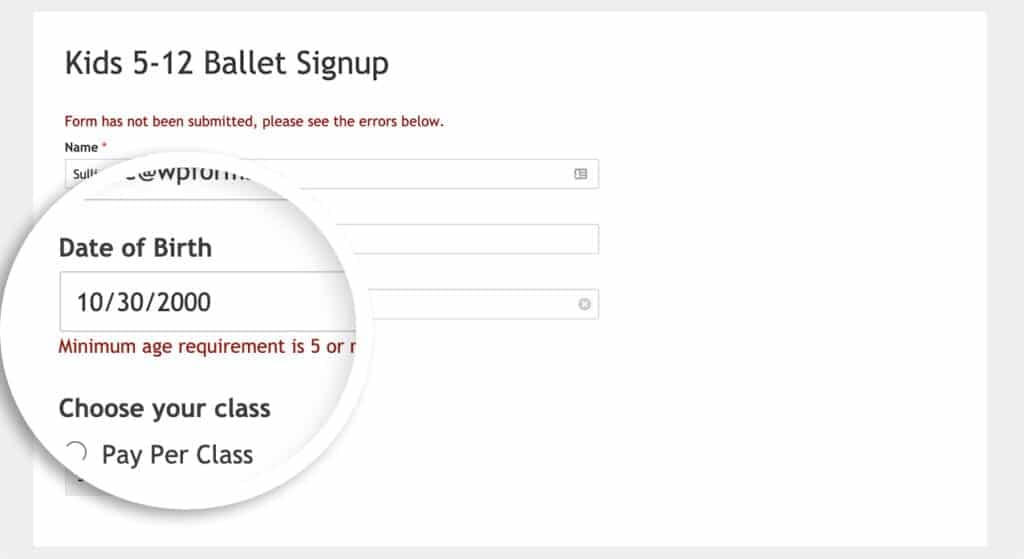
- Placement: under the field first, top summary second. Single-field errors hug their field (no eye travel); when several fields fail on submit, add a top banner — "3 fields need attention" — clickable to jump to each. Top-only errors that make users hunt for the field are the classic anti-pattern.
Converge all copy into the schema's messages (see Section 1's code), not scattered across JSX — one place to edit later, and one place to internationalize.
3. Async Validation in Practice: Debouncing and Racing Uniqueness Checks
"Is this available" checks for usernames, emails, invite codes must ask the backend. AI's version usually fetches inside onChange and steps into all three pits at once: hammering the backend, out-of-order responses (races), and no "checking…" indication for the user.
import { useEffect, useRef, useState } from "react";

function useUniqueCheck(value: string, check: (v: string) => Promise<boolean>) {
  const [state, setState] = useState<"idle" | "checking" | "ok" | "taken">("idle");
  const seq = useRef(0); // race guard: only the latest request's result counts
  useEffect(() => {
    if (!value) { setState("idle"); return; }
    setState("checking");
    const mySeq = ++seq.current;
    const timer = setTimeout(async () => {
      const available = await check(value);
      if (seq.current === mySeq) {           // stale responses are discarded
        setState(available ? "ok" : "taken");
      }
    }, 400); // debounce 400ms: fire only after the user pauses
    return () => clearTimeout(timer);
  }, [value]);
  return state;
}
// UI: spinner while checking; under the field when taken:
// "That username is taken — try xxx_2026"
Three hard rules:
- Debounce 300–500ms before firing. Checking on every keystroke is a self-inflicted DDoS. 400ms is the empirical sweet spot: fire on pause, no drag.
- Races must be handled. On flaky networks, "the earlier request returns later" is routine. Use a monotonically increasing sequence (or AbortController to cancel stale requests) so only the latest input's result counts — otherwise users watch "available" and "taken" flicker.
- The pending state must be visible. Show a small spinner while checking; more importantly, the submit button must be disabled while async validation is pending — otherwise users can submit before the username check finishes.
4. The Submission State Machine: idle → submitting → success / error
The single most important diagram in this guide. Form submission isn't "call an API" — it's a state machine:
 Screenshot of a web form showing inline validation error messages under the fields
Each state owns its part:
- idle: button reads "Submit now," clickable. The form's resting state.
- submitting: button disabled, copy becomes "Submitting…". Disabling is the first gate against double submits — it stops 95% of rapid clicks.
- success: the success state. Redirect, toast, or clear the form — pick one; don't linger in submitting.
- error: the error state. Button re-enables with "Try again"; the critical move: auto-focus the first erroneous field (Section 7) plus a one-line summary on top.
Double-submit prevention needs all three guards (diagram bottom):
const inFlight = useRef(false); // guard #2: function-level
async function onSubmit(data: FormData) {
  if (inFlight.current) return;   // stops Enter-mashing and programmatic re-calls
  inFlight.current = true;
  try {
    await fetch("/api/orders", {
      method: "POST",
      headers: {
        "Content-Type": "application/json",
        // guard #3: idempotency key — the backend dedupes on retries
        // and on the same form submitted from two tabs
        "Idempotency-Key": crypto.randomUUID(),
      },
      body: JSON.stringify(data),
    });
    // → success
  } catch {
    // → error: copy must say "your input is intact, hit submit again"
  } finally {
    inFlight.current = false;
  }
}
Guard #3 is the one most people skip: a disabled button stops rapid clicks, not "the user opened two tabs" or "the browser auto-retried on a weak network." An idempotency key makes the backend process each key once — the real fix for double submits. It costs a key→result mapping on the backend; start with order and payment endpoints.
5. File-Bearing Forms: Inline Handling of Avatars and Attachments
Forms with files (avatars, ticket attachments, ID documents) add a dimension: the file must pass inspection before joining the form. The rule is client-side pre-checks + reuse the upload pipeline:
- Block on size, type, and count up front. A user picking a 200MB video shouldn't learn it's too big after a 3-minute upload. The input's
acceptattribute plus a JS second check (file.size,file.type) gives second-level feedback. - Reuse the
vibe-project-file-upload-guidepipeline (direct-to-object-storage, chunking, resume) — not repeated here. This guide only covers the form side: progress renders inside the field (progress bar), and the submit button stays disabled until uploads finish — otherwise users can submit a form whose files haven't arrived. - Per-file retry and delete. One failed attachment retries alone without resetting the whole form; the picked-file list supports individual removal. That's the big difference from plain fields: a file field's "value" has a lifecycle.
// the state of a file field
type FileFieldState =
  | { status: "empty" }
  | { status: "checking" }            // client pre-check (size/type)
  | { status: "uploading"; progress: number }
  | { status: "done"; url: string }    // uploaded; url joins the form data
  | { status: "error"; message: string }; // individually retryable
// submit gate: every file field must be "done" before submit is allowed
6. Multi-Step Forms: Per-Step Validation and Draft Autosave
Long forms — onboarding, applications, surveys — get split into steps. Each step is an independent sub-form with these rules:
- Validate per step. "Next" validates only the current step's fields, not the unfilled steps ahead. Blocking a user on step 1 with step 3's errors is maximally discouraging. Split sub-schemas with the schema's
pick; one per step. - Autosave drafts. After each completed step, write
localStorage(key includes the form id and a version). Refresh, accidental close, phone switching away and back — greet returners with "Unfinished draft found — continue?" and watch conversion diverge. Privacy note: forms with ID numbers or bank cards should encrypt drafts, keep only non-sensitive fields, and clear them on successful submit. - Going back never loses data. Keep step state (current step + each step's data) at form level; don't drop data when a step component unmounts. Simplest implementation: register all steps' fields in one
useForm; step switching only changes which group renders — data is naturally preserved. - Progress indicator. "Step 2 of 4" up top gives users a sense of control. Allow jumping back to completed steps; jumping back doesn't clear data.
// data survives naturally: one useForm for all steps, switching only changes visibility
const methods = useForm({ resolver: zodResolver(fullSchema), mode: "onBlur" });
const [step, setStep] = useState(0);
const stepFields = [["name", "phone"], ["company", "role"], ["bio"]][step];

async function next() {
  const ok = await methods.trigger(stepFields[step] as any); // current step only
  if (ok) {
    saveDraft(methods.getValues()); // draft saved on every step pass
    setStep((s) => s + 1);
  }
  // else: errors already render under their fields; trigger focuses the first one
}
7. Accessibility: Labels, Error Association, Focus Management
Forms are accessibility disaster zones — and the easiest place to score points. A screen-reader user who can't complete a form is a user your product is closed to. The checklist is short; implement every item:
- Every input gets a label, explicitly associated via
htmlFor/id. Placeholder is not a label — it vanishes on typing and screen readers get no stable name. - Point errors at the input with
aria-describedby.<input aria-describedby="phone-error">plus<p id="phone-error">— the screen-reader user hears the error content when focused on the field, not just "invalid." - Mark erroneous fields
aria-invalid="true"alongside the visual red border (never color alone: low-vision users need an icon or text cue too). - On failed submit, focus the first erroneous field automatically. The key move of the Section 4 state machine's error state: one line —
setFocus(firstErrorField)(built into RHF) — and keyboard and screen-reader users instantly know where to fix. Scroll it into view visually too. - Mark required with the
requiredattribute plus the word "required" — never a red asterisk alone; screen readers announce bare symbols unreliably.
8. Launch Checklist: 12 Items
- 1. Layer split correct: onChange formats without errors; onBlur errors per field; pre-submit runs the full pass. Walk three fields through all layers.
- 2. Copy review: a non-technical person reads every error message and can say "what to change" — otherwise rewrite.
- 3. Async trio: debounce, race handling, submit disabled while pending — verify each.
- 4. Triple double-submit guard: disabled button, inFlight guard, idempotency key — ten rapid clicks produce exactly one record.
- 5. Weak-network test: throttle to Slow 3G in devtools and submit; button copy, disabling, and timeout errors must all behave.
- 6. File forms: oversized files rejected in seconds, submit disabled mid-upload, per-file delete and retry.
- 7. Multi-step: refresh restores the draft, back-navigation keeps data, successful submit clears the draft.
- 8. Accessibility five: label association, aria-describedby, aria-invalid, focus-on-failed-submit, textual required markers.
- 9. Mobile numeric keypad: phone, OTP, and amount fields use
type="tel"orinputMode="numeric"to summon the numeric keyboard; avoidtype="number"(inconsistent stepper keyboards across browsers). - 10. Autofill: correct
autocompleteattributes on name, email, phone, address (name,email,tel…) — mobile users type half as much. - 11. Password-manager compatibility: login/signup forms use standard
type="password"withautocomplete="current-password|new-password"so 1Password and OS keychains fill correctly — a custom show-password eye must not break this. - 12. Error telemetry: log failed submits and async-check exceptions; review the top error fields weekly — the fields users repeatedly fail are where copy or interaction needs fixing.
Form optimization has no finish line, but it has a starting line: land Section 4's state machine and Section 1's layer split and your forms already beat 80% of vibe projects. The rest is reviewing error telemetry weekly and letting real users' mistakes set your optimization backlog.
Comments (0)
Related articles
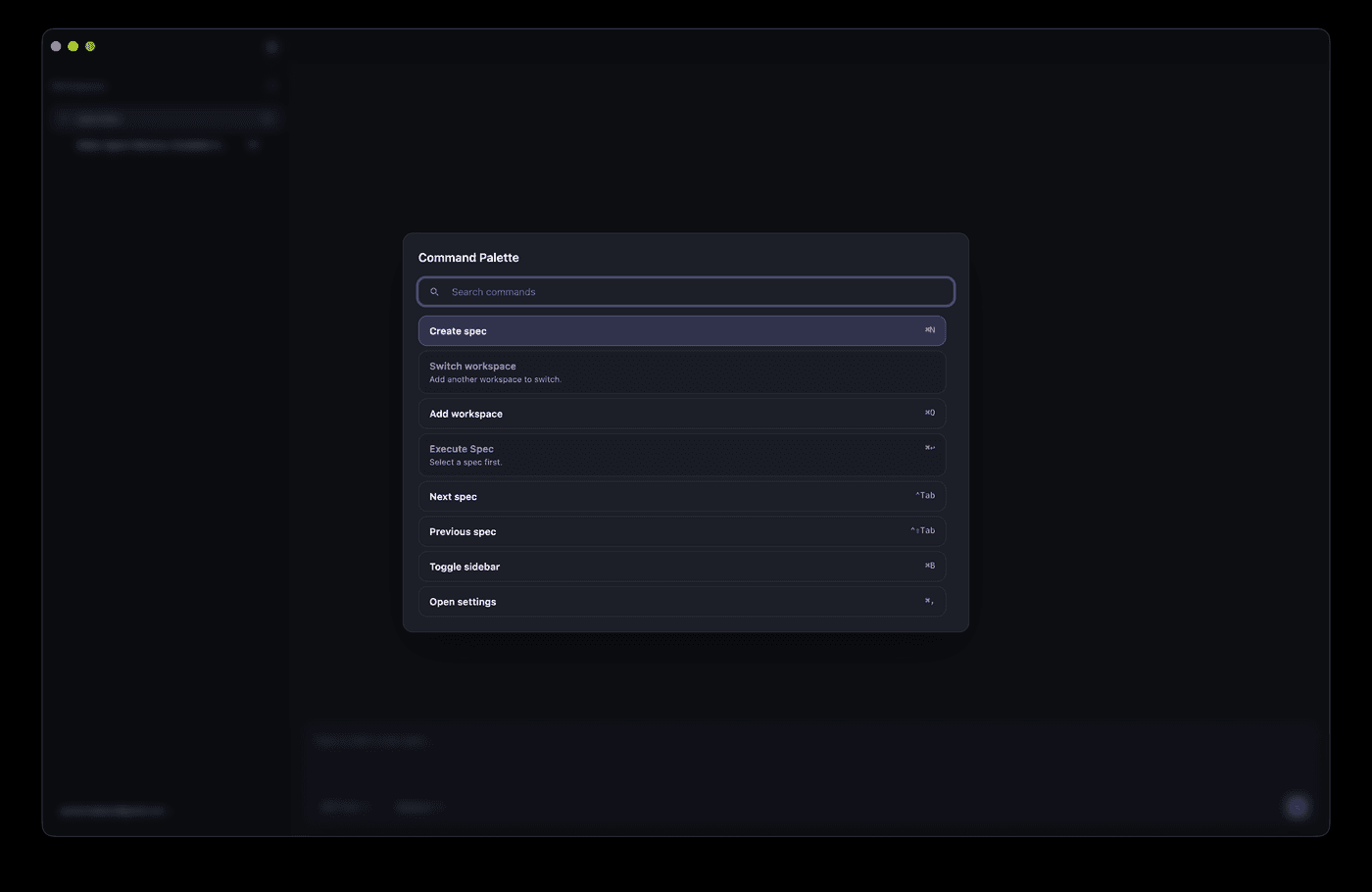
AI can ship a Cmd+K palette in half an hour, but match ranking, shortcut conflicts, IME flicker, and mobile degradation are where it breaks. This hands-on guide gives solo teams the full route: a command registry data model, a five-stage fuzzy scoring pipeline, a global shortcut system with conflict detection, the complete keyboard accessibility loop, mobile entry degradation, permission-linked commands, and a 10-item launch checklist.
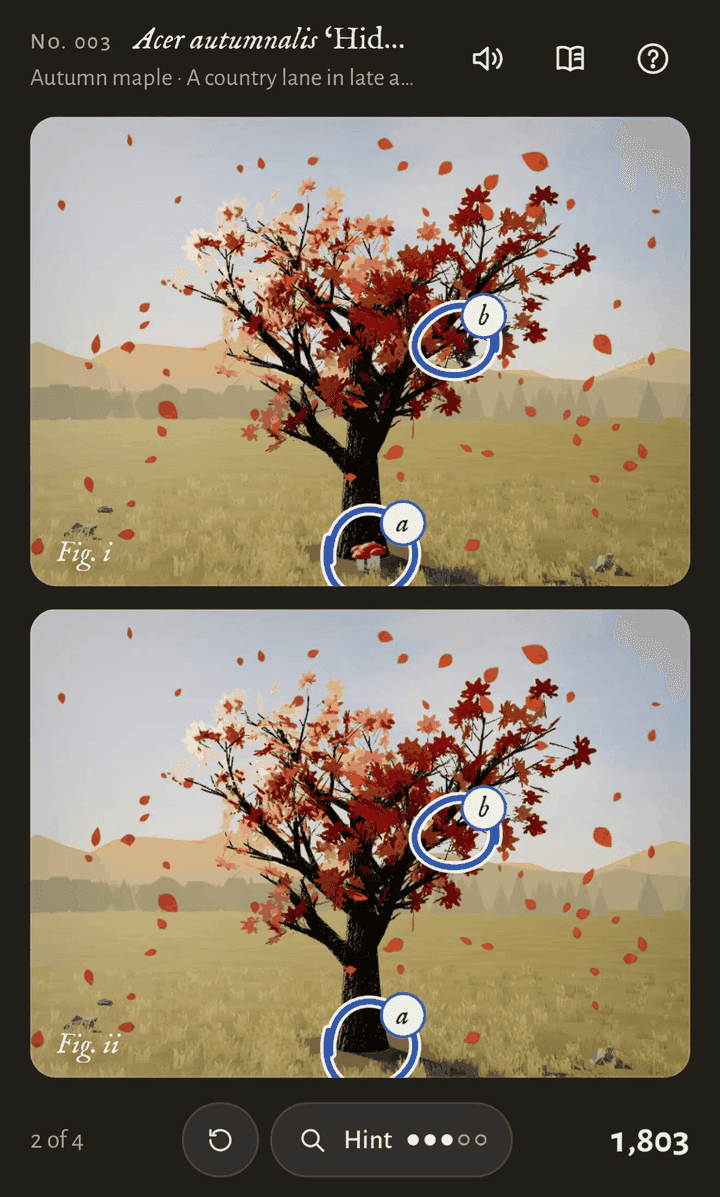
On October 14, Simon Willison sent one prompt to Claude Opus 5.5 Max from the iPhone Claude app's chat mode; 3 hours 7 minutes of single-pass reasoning later, out came a playable cozy spot-the-difference game with music, animation, and achievements. His verdict: telling the model to "make sure it is fun" works "uncomfortably well".
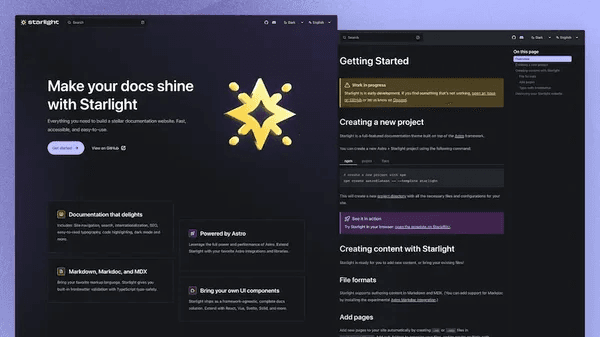
AI can slap together a page that looks like docs, but information architecture, versioning, search, and staying in sync with code are what make a docs site usable. This guide gives solo teams the full route: the README/help-center/docs-site decision table, a verified four-way tool comparison (Fumadocs/Starlight/Docusaurus/Mintlify), the four-block IA with two reader paths, snapshot versioning, DocSearch vs local search, OpenAPI-driven API reference, and a 10-item launch checklist.